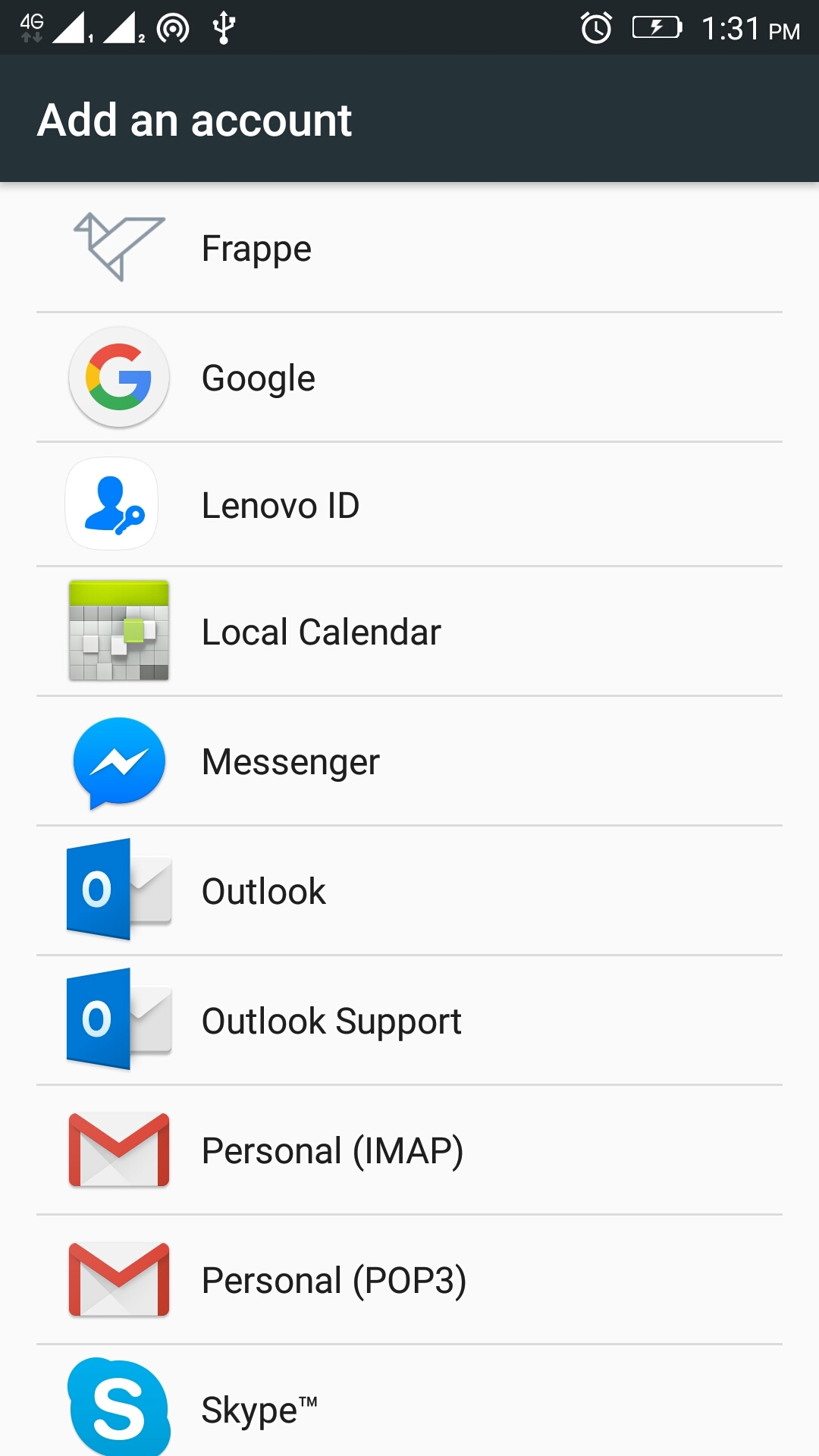
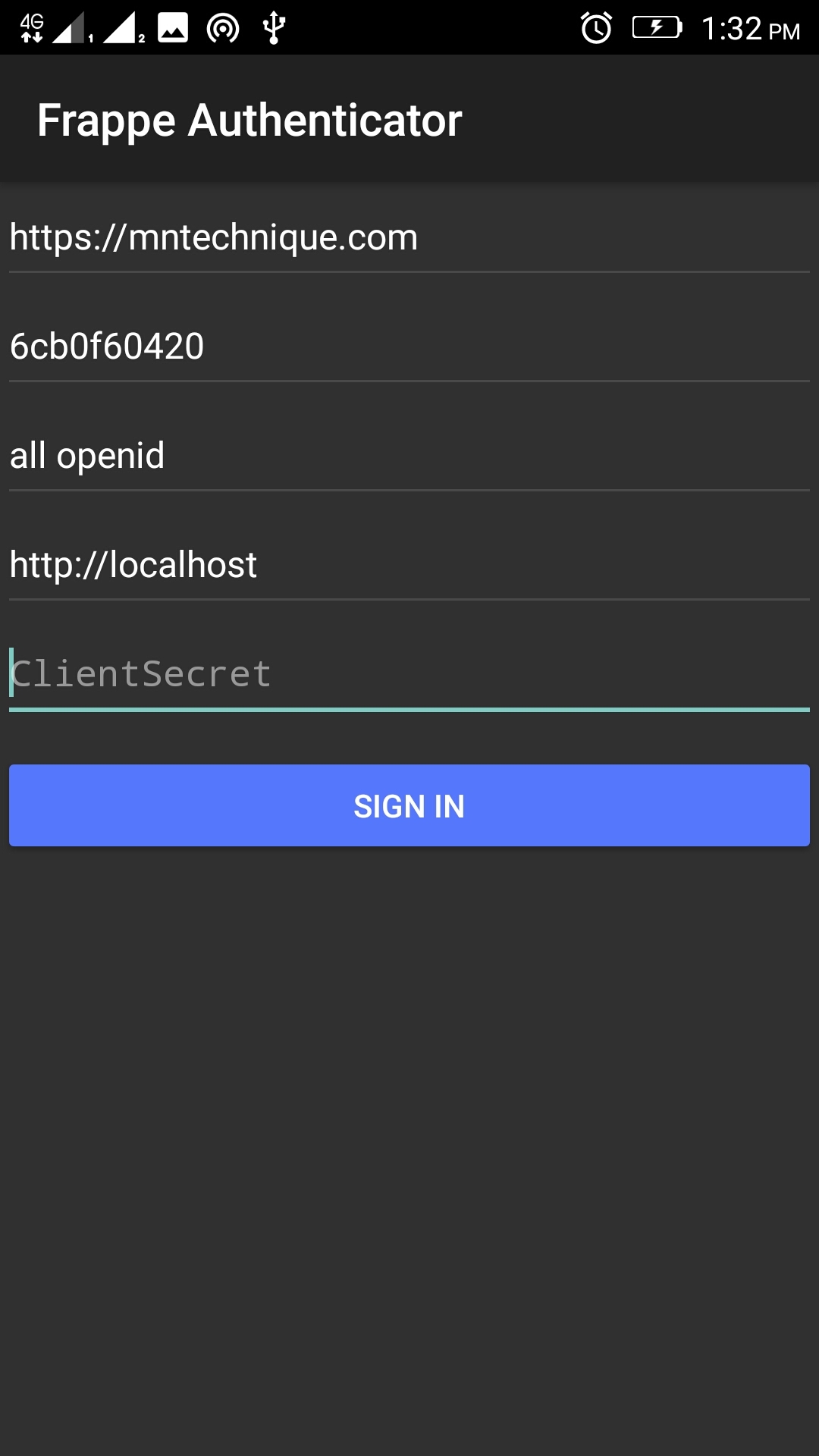
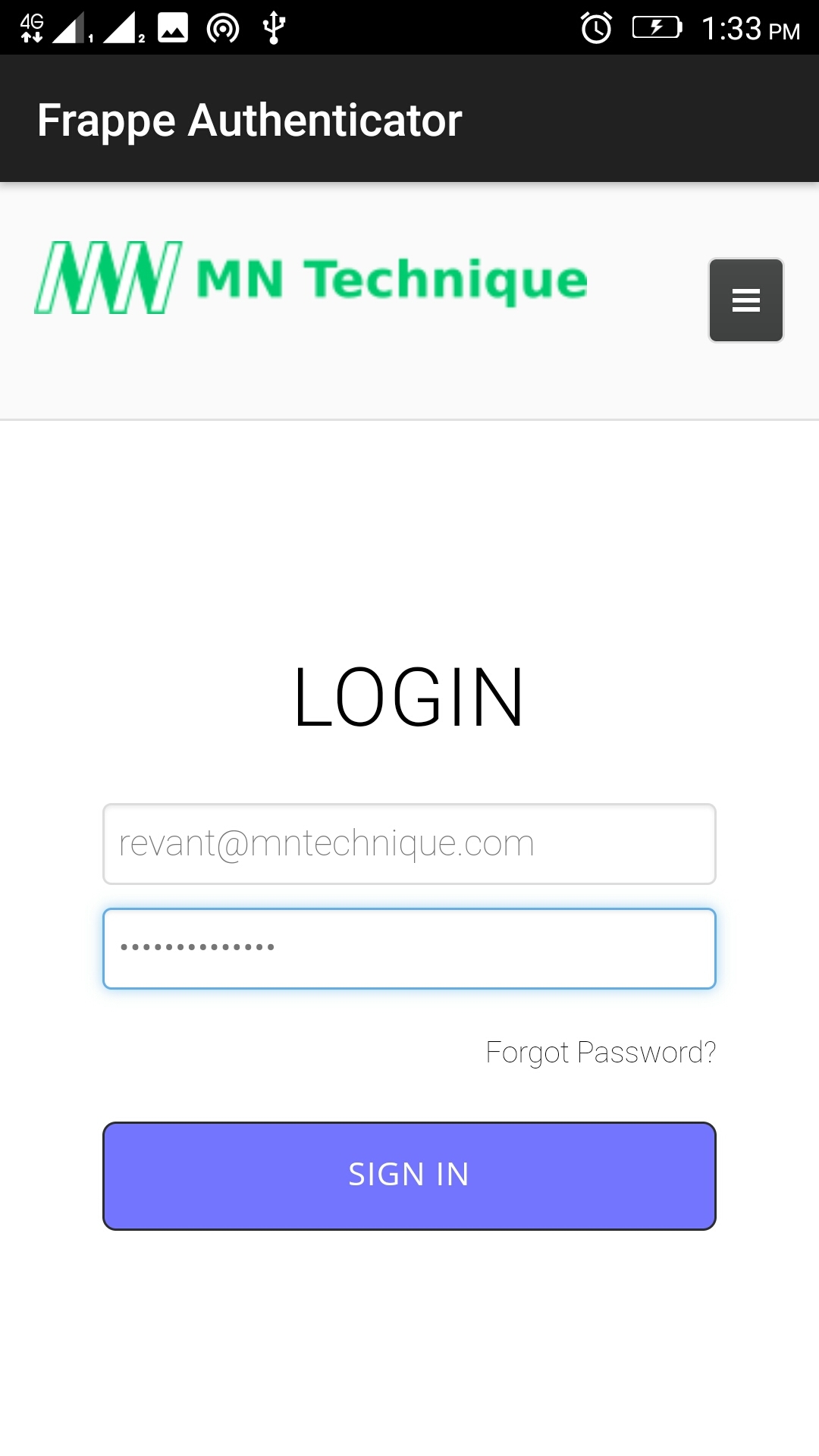
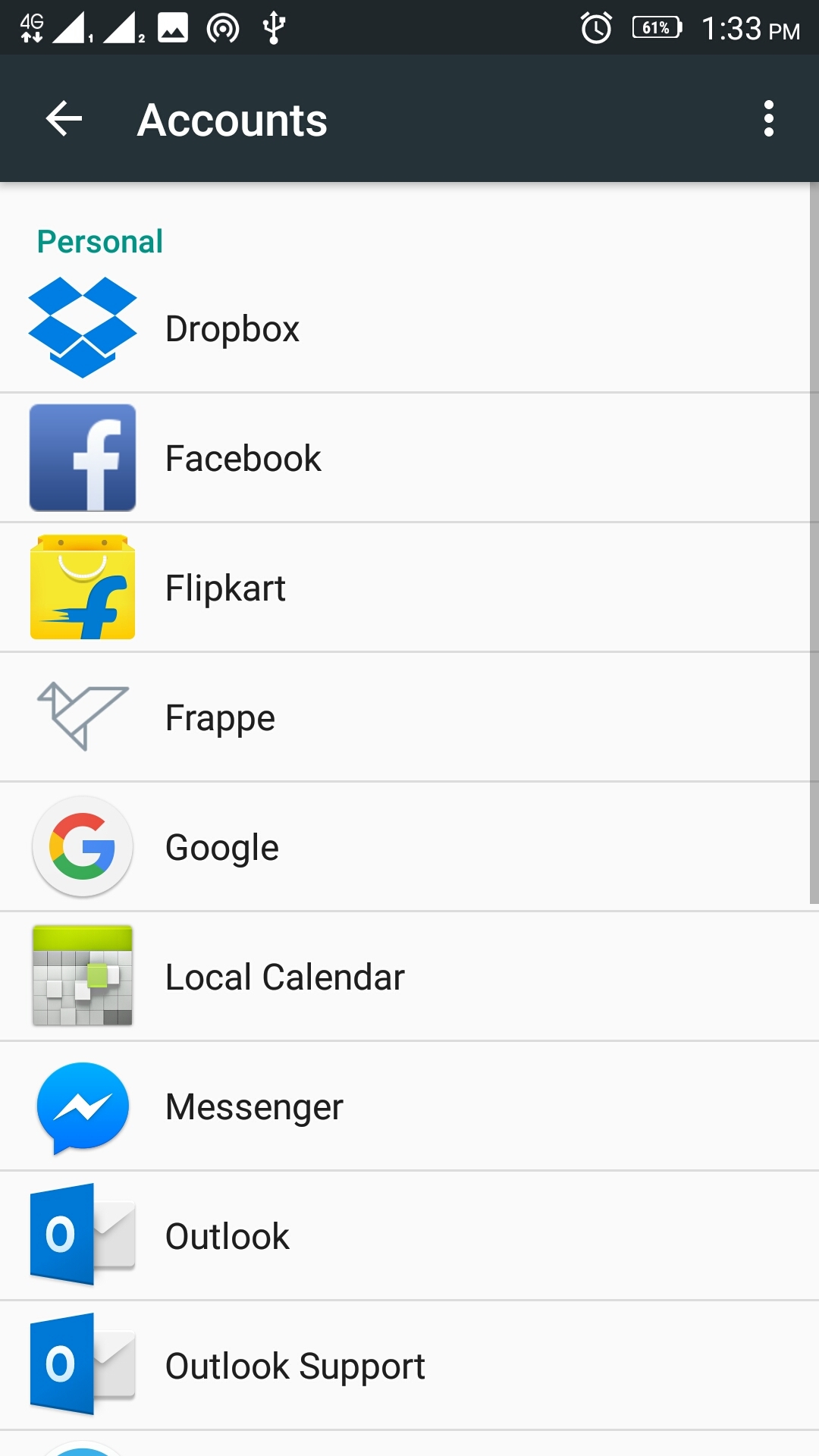
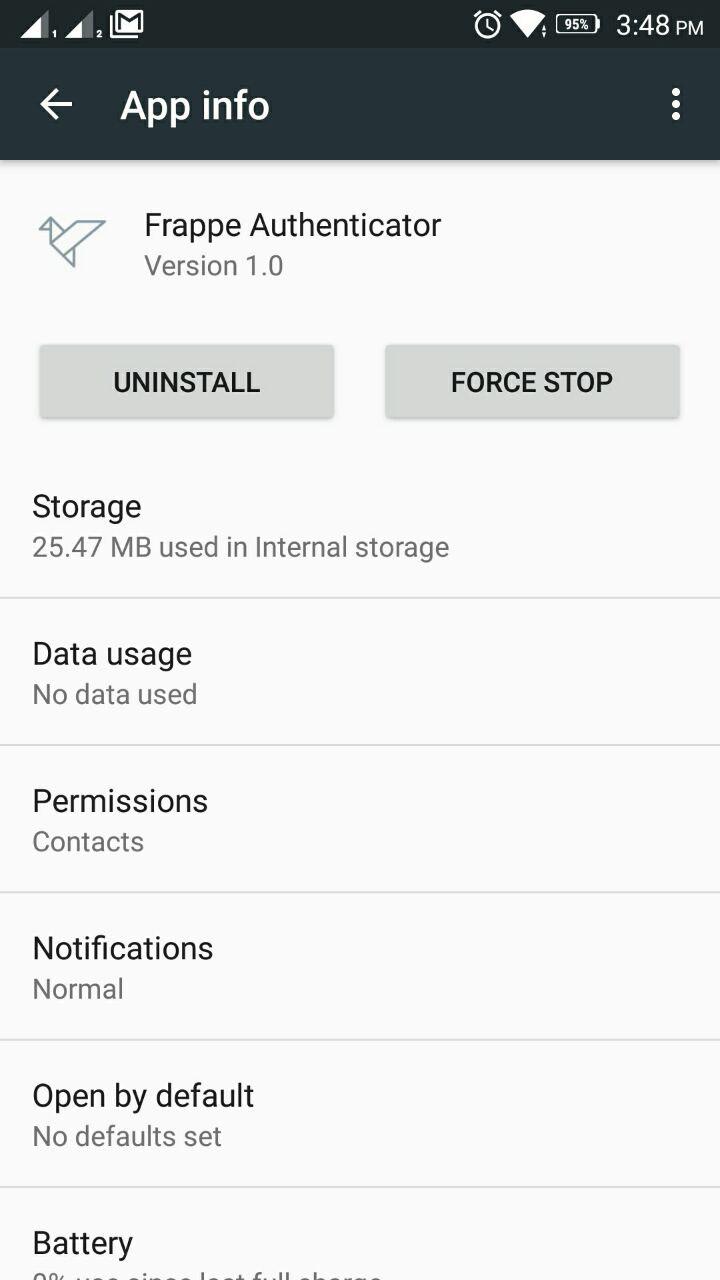
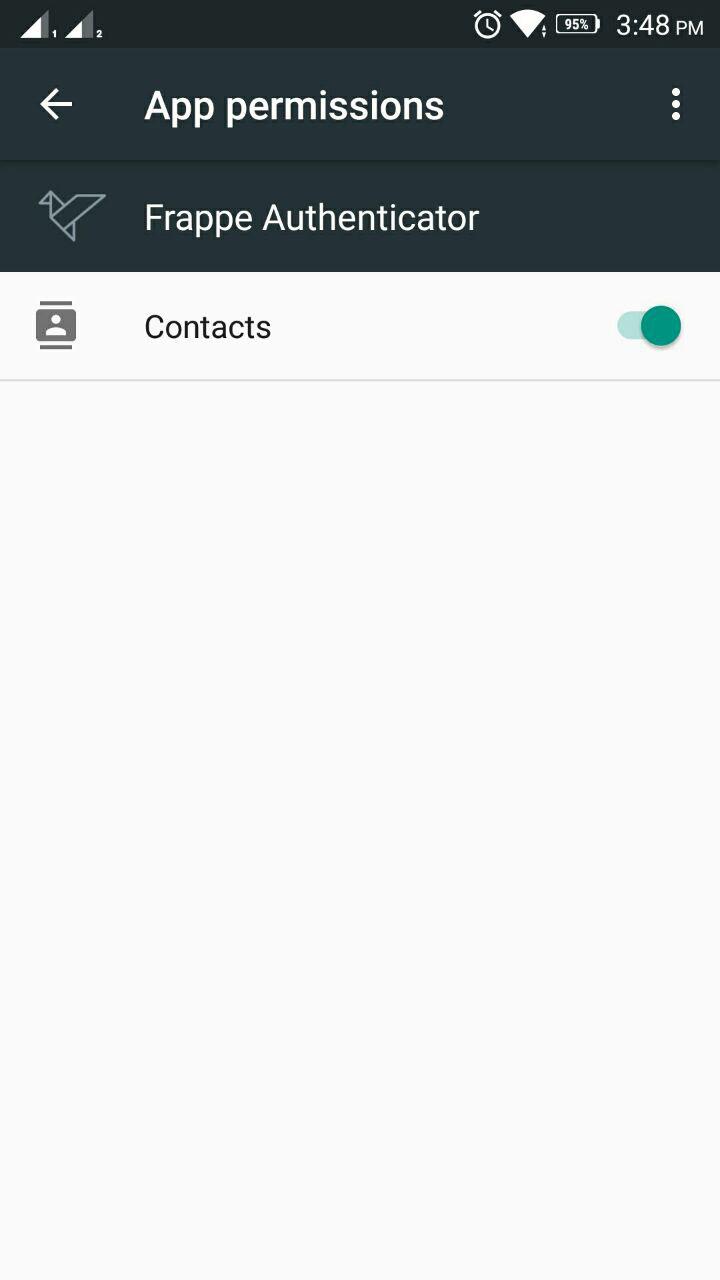
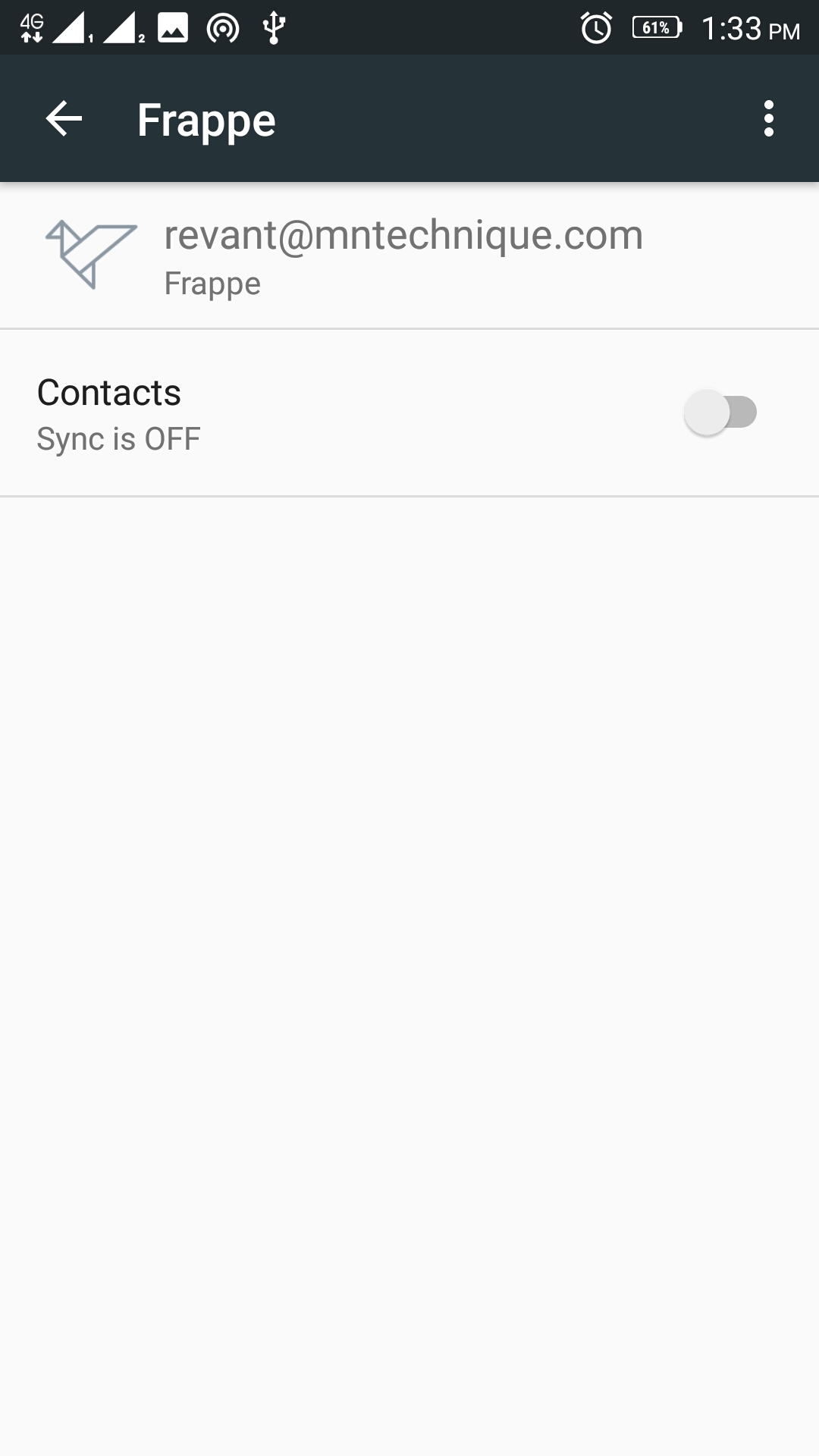
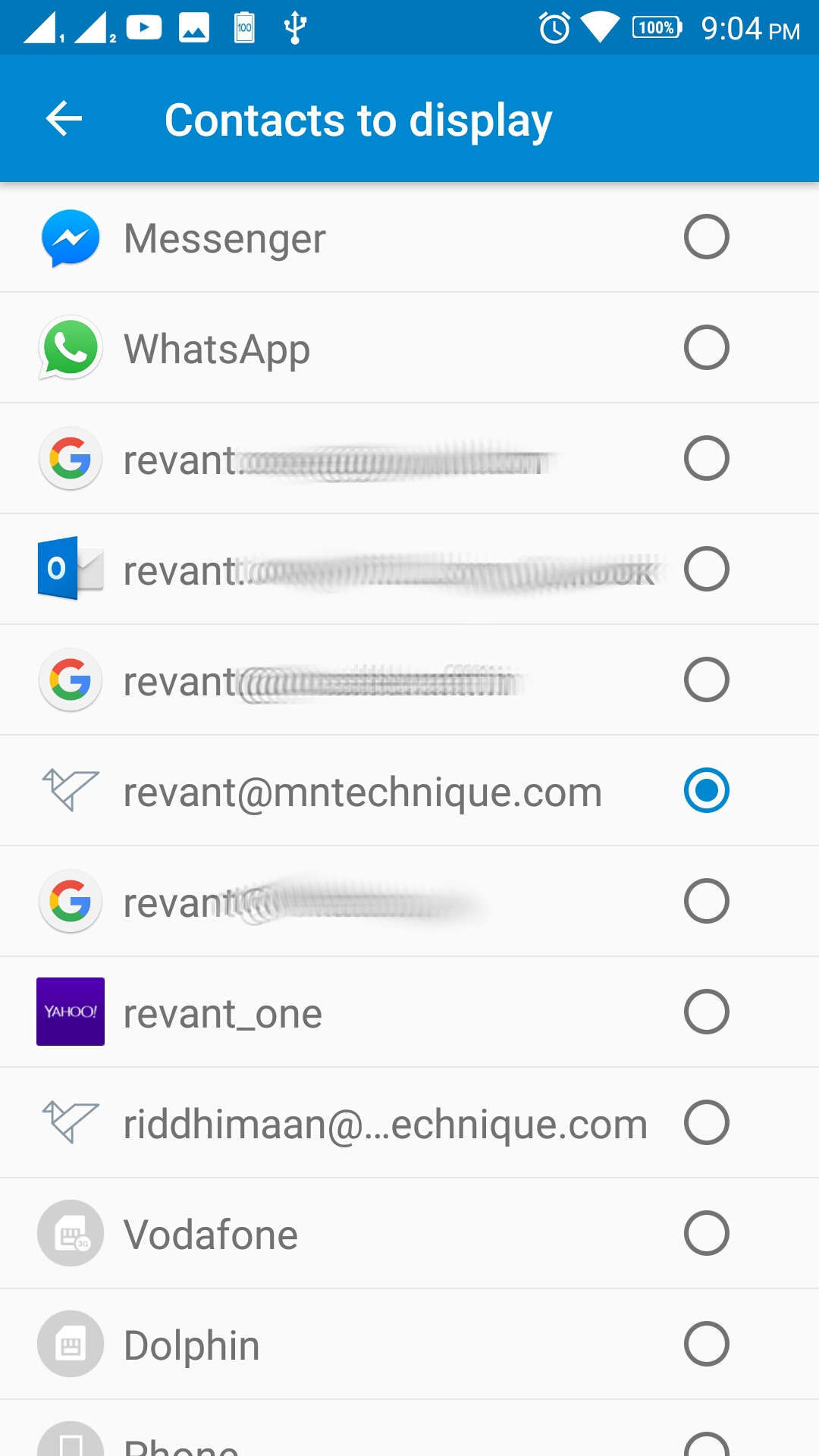
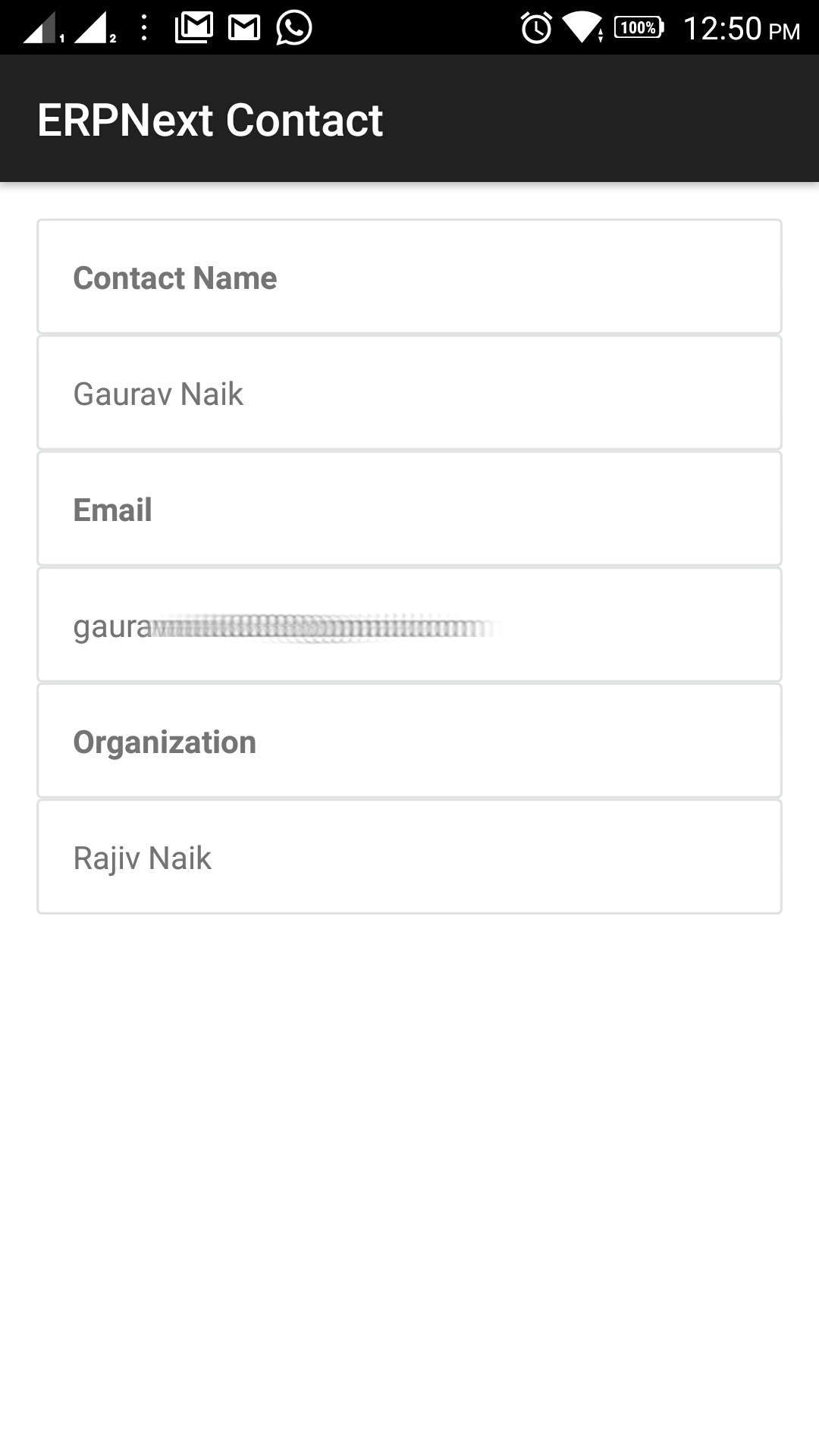
Add an OAuth Client in Frappe Server. refer: https://frappe.github.io/frappe/user/en/guides/integration/how_to_setup_oauth This is the mobile app that will be communicating with the Frappe OAuth Server Note : While adding the Client keep the Redirect URI as http://localhost (or any non existing hostname) Keep a note of the Client ID, Redirect URI and Frappe Server as they are requried later. Frappe server is the server url where your account is hosted Add Account on Android Go to Settings > Accounts and click on Add Account Select Frappe to Frappe Server account. Enter the Frappe server, Client ID and Redirect URI here. Click Sign In, Enter your account the credentials and login. Added account is seen under Settings > Accounts > Frappe Allow Contact Permissions In Newer version of Android go to Settings > Apps Select Permissions and enable Contacts permission ##### Under All app, search Frappe Authenticator Set Contacts to Display in Contacts Manager Go to the Phone's Contacts app, Click the menu and select Contacts to display Select the Frappe account contacts to display under contact list. Click on the Frappe icon on phone book contact to view ERPNext Contact For Developer Develop integrations with Android apps using Frappe Authenticator