
Varro runs OpenCode inside VS Code. It adds project-aware chat, parallel sessions, plan and change review, model and permission controls, commit-message generation, and usage reports.
Supports OpenCode v2 and v1. Varro automatically detects the connected API and uses the same workbench for either version. OpenCode v2 is recommended for new installations.
OpenCode remains responsible for agents, providers, models, commands, skills, MCP servers, and their configuration. Varro reads that configuration and provides a VS Code interface for it.
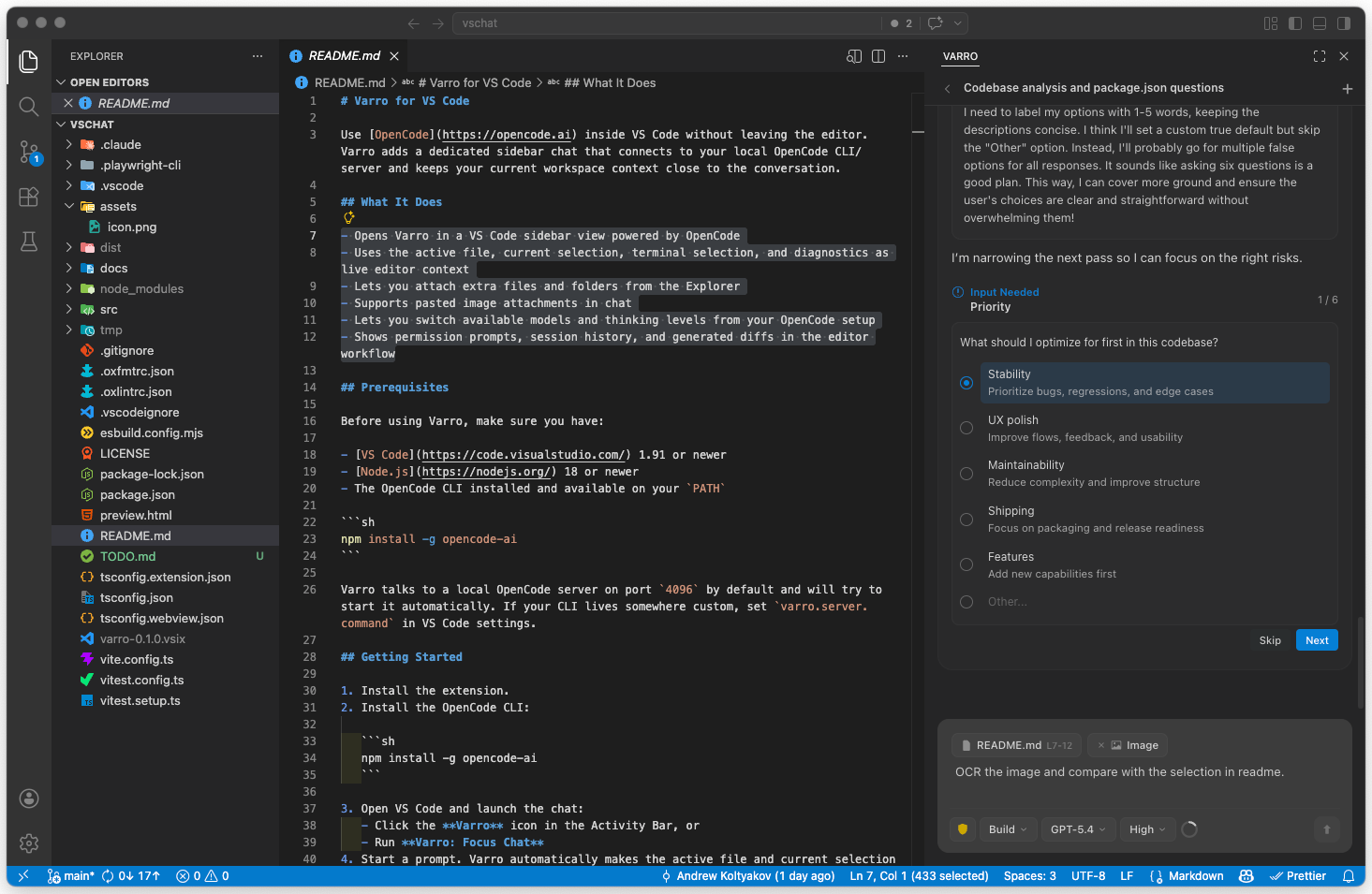
- Install Varro from the VS Code Marketplace.
- Install OpenCode v2 with
npm install -g @opencode/clion macOS, Linux, or WSL. For native Windows, download the standalone CLI from that page. - Run
opencode auth login, or use/connectin Varro, if no provider is configured. - Open a folder in VS Code and select
Varrofrom the Activity Bar. - Start a session. Varro starts or connects to OpenCode when needed.
Already using v1? You can keep it, or install it with npm install -g opencode-ai. Set varro.server.command to your v1 executable to select it explicitly. With this setting empty, Varro searches for opencode2 first, then opencode. Current v1 and v2 packages both install opencode, so the command name alone does not identify the version. Run opencode --version to check. See choosing and updating OpenCode before switching versions.
After switching from v1 to v2, you may need to run
Varro: Restart Serverfrom the Command Palette. Installing v2 does not replace an already running v1 server. If restart fails or Varro still shows v1, stop the old OpenCode process explicitly, especially on Windows, then restart with the v2 executable. Let active work finish first. See restart recovery steps and confirm the connected version in Varro's status bar.
Install OpenCode on the host where Varro runs. A native Windows VS Code window needs the Windows CLI; add it to PATH or set varro.server.command to its executable path. A VS Code WSL window needs OpenCode installed inside that WSL distribution. Native OpenCode data is under %USERPROFILE%\.local\share\opencode; WSL uses the Linux data directory.
Varro supports VS Code and VSCodium. Support for other VS Code forks is limited; see VS Code fork compatibility.
- Choose among the providers and models supported by OpenCode instead of tying the editor to one model vendor.
- Reuse OpenCode agents, commands, skills, MCP servers, and project instructions. The same configuration remains available in Varro, the OpenCode TUI, and other OpenCode clients.
- Run multiple OpenCode sessions in the sidebar or editor tabs. Search, resume, fork, pin, share, export, archive, and recycle sessions.
- Follow streaming responses, reasoning, tool calls, questions, permissions, todos, plans, and file changes in one transcript. Routine completed work is grouped into expandable summaries.
- Include the active file and selection automatically. Attach files, folders, diagnostics, terminal output, images, PDFs, and references to other sessions.
- Queue follow-up prompts, steer an active run, or stop it and send a replacement.
- Set permissions per session to manual approval, automatic edit approval, rule or model-based approval, or full access.
- Select agents, providers, models, reasoning variants, and per-session MCP connections. Pin or hide models and inspect their known capabilities.
- Review changed files and optional inline diffs. Open completed plans or continue them in implementation sessions.
- Track context use, token counts, reported cost, and supported provider quotas. Generate cross-project usage reports with
/stats. - Generate a commit message from staged changes, or from unstaged changes when the index is empty. Varro fills the Source Control input but does not stage or commit files.
- Use VS Code light, dark, and high-contrast themes. Chats work in the sidebar, a maximized sidebar, or side-by-side editor tabs.
Workbench means Varro provides dedicated UI. Integrated means OpenCode performs the operation and Varro exposes it. Handoff opens the relevant OpenCode or VS Code interface.
| Capability | Coverage | Support |
|---|---|---|
| Sessions and history | Workbench | Create, search, resume, rename, pin, fork, share, export, recycle, and navigate root and child sessions. |
| Chat and tool calls | Workbench | Stream active output; keep failures, approvals, edits, and final responses visible; group routine work into expandable summaries. |
| Queue and steering | Workbench | Queue and reorder follow-ups, steer the active run, or stop it and send a replacement. |
| Files and multimodal input | Workbench | Attach files, folders, selections, terminal output, diagnostics, images, PDFs, and session references, subject to model support. |
| Permissions and questions | Workbench | Answer requests inline, choose a permission mode per session, and surface child-session approvals in the parent chat. |
| Providers and models | Workbench | Connect supported credentials, select models and reasoning variants, pin or hide models, and assign helper models. |
| MCP servers | Workbench | View OpenCode MCP servers and connect or disconnect them per session. |
| Plans and todos | Workbench | Track todos, open completed plans, continue into implementation, and run Ralph loops. |
| Agents and sub-agents | Integrated | Select or mention agents and follow delegated sessions. Agent definitions stay in OpenCode configuration. |
| Commands and skills | Integrated | Run built-in and custom slash commands, browse skills, and use compact, undo, redo, fork, and export actions. |
| Compaction and recovery | Integrated | Configure or run compaction, reconnect sessions, and recover from temporary transport failures. |
| LSP, formatters, and tools | Integrated | Show language-server status and tool activity. OpenCode owns definitions and execution. |
| Configuration and TUI | Handoff | Edit instruction files or continue a session in the OpenCode TUI. |
Coverage depends on the connected version. The supported v2 API has no session sharing or OpenCode LSP service. Varro disables sharing on v2; VS Code Problems can still be attached as context. V2 session annotations are stored locally by Varro. See version differences and history import.
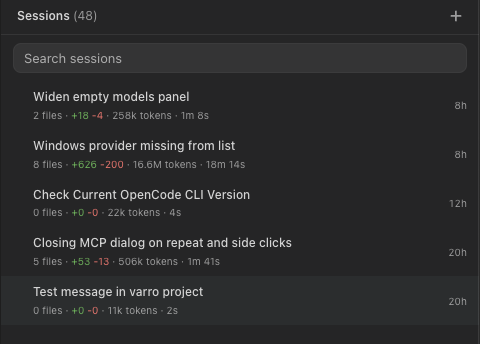
Varro filters sessions to the current workspace and groups them into Recent, Archive, and Recycle Bin. Filters identify Running, Needs attention, Failed, Plan ready, and Completed sessions. Rows can show queued prompts, changed files, added and removed lines, token use, duration, and current state.
Indicators at the top of the chat summarize activity in other sessions: a numbered spinner means running, blue means waiting for input or permission, red means failed, yellow means a plan is ready, and green means completed. Select an indicator to open the matching session or filter. Colors may vary with the active VS Code theme. See the usage guide for details.
OpenCode search covers loaded and older root sessions. Open any session in the sidebar, an editor tab, or the OpenCode TUI. Root sessions can be pinned, renamed, shared, or recycled. Child sessions remain linked to their parent. On wide layouts, the session list can remain beside the active chat.
When Varro is hidden, VS Code notifications report plans, failures, permission requests, and questions from root sessions. The status bar links to sessions that need attention, then to completed background work.
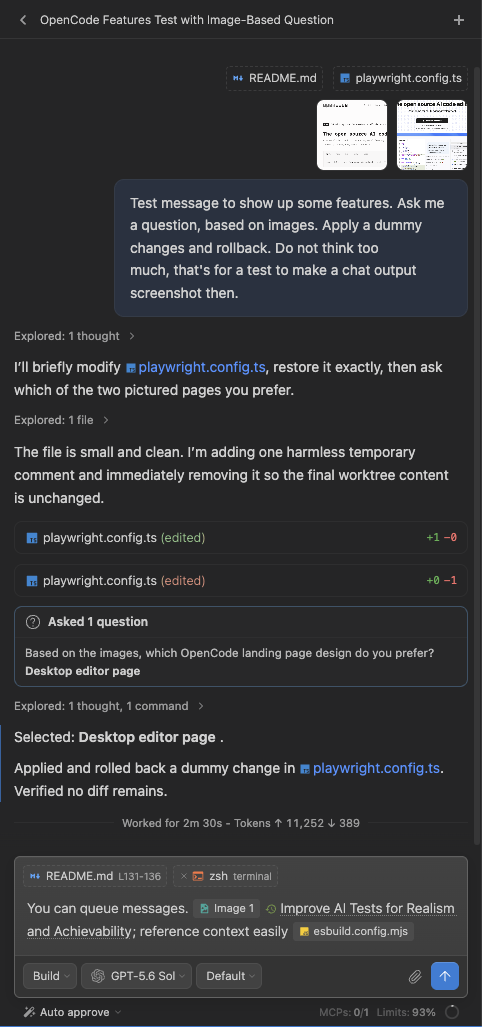
Live document context includes the active file and selection by default. A chip in the composer shows this context and can disable it for the session. Use Varro: Add to Context or Cmd+Shift+K / Ctrl+Shift+K to add files, folders, line ranges, or terminal output. You can also drag files and folders into the composer or paste images.
Type @ to find workspace files and agents. Type & to reference a recent root session. The composer also shows active language servers, supports prompt history and undo or redo for attachments, and restores unsent text plus explicit file or folder attachments after a reload.
During a run, queue a follow-up, steer the current work, or stop it and send a replacement. Queued prompts can be reordered, paused, resumed, edited, retried, removed, or sent immediately as steering.
Commands stream their output. Failures, questions, approvals, file edits, and the final response remain visible. Completed routine work and thinking are grouped under summaries such as Explored and Worked. You can expand summaries, open long tool input or output in an editor, show thinking, or enable inline file previews.
Other chat workflows include rendered Mermaid previews, transcript turn navigation, changed-file links, Source Control handoff, reconnecting sessions after reload, and commands such as /review, /compact, /export, /stats, /skills, /diagnostics, /fork, and /ralph. Ralph runs support iteration, verification, repair, pause, and resume, and use Full access.
With OpenCode V2, /pause interrupts the current session run and pauses its queued messages in the current view. A Paused divider marks the transcript. Hover over it or focus its Resume button to continue; sending a new message or playing a queued message also continues the session. The divider then reads Paused and resumed. Pause markers survive reopening the session. This preserves the conversation but does not suspend an in-flight model response or tool operation for exact resumption.
Paused time is excluded from worked-duration summaries and usage statistics. Resuming starts a new work period, so returning hours later does not inflate the previous run's duration.
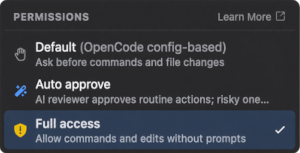
Permission requests provide Reject, Once, and Always actions. Each session has one of three modes:
Defaultfollows OpenCode and agent permission rules.Autoapplies local rules and, when needed, a configured model. Requests it cannot decide remain available for manual approval.Full accessallows the session to act without confirmation.
Child sessions inherit the nearest selected mode in their session tree. Manual child requests appear in the parent conversation while remaining owned by the child session.
Varro initially selects Auto unless varro.chat.defaultPermissionMode or a saved project/global selection says otherwise. Default follows the connected OpenCode version's global and agent rules. V2 uses ordered permissions rules with action, resource, and effect; supported v1-format rules remain accepted. See v2 permissions or v1 permissions for syntax and defaults.
See the Varro permissions guide for mode behavior, manual approvals, and automatic review details.
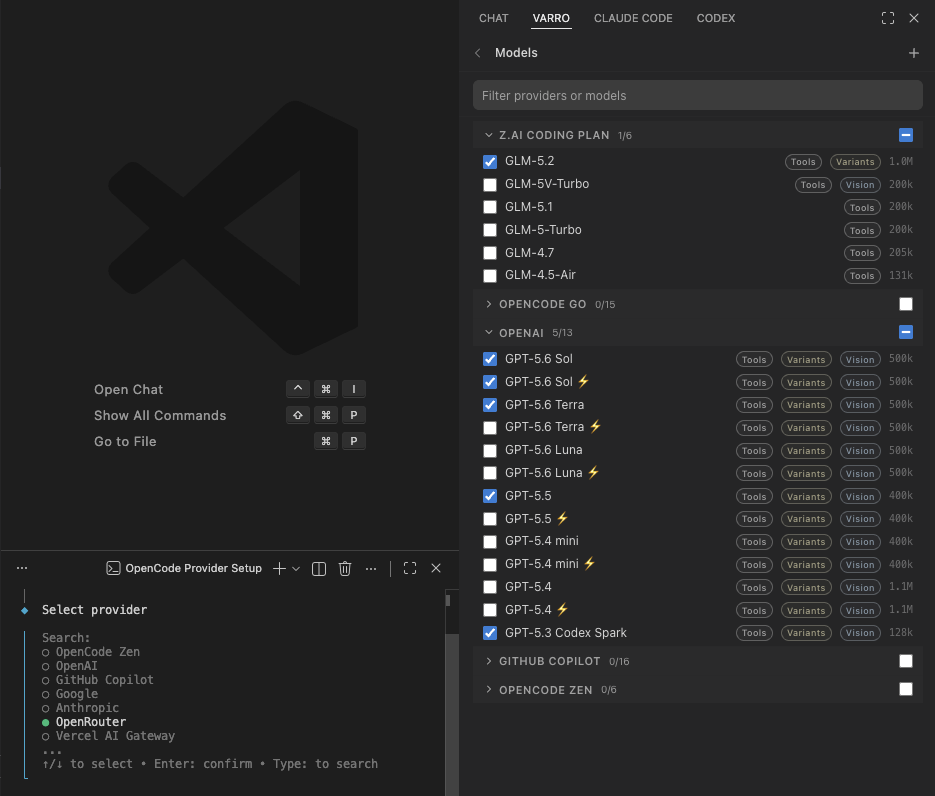
The model picker reads providers and models from OpenCode. It displays known tool, reasoning, image, PDF, and context-window capabilities. You can pin or hide models and set local display names without changing OpenCode IDs.
The Models view connects supported API-key and OAuth credentials through OpenCode. It also provides reauthentication when a provider reports an expired or revoked credential. Terminal-based OpenCode setup remains available.
A tool-capable text-only model can delegate image analysis to an OpenCode sub-agent named vision. Assign that agent an image-capable model and include an exact @vision mention in the prompt. See Add vision to a text-only model.
For read-only investigation, define a primary agent named ask with explicit read and search permissions. See Configure primary agents.
MCP servers come from OpenCode configuration and can be connected or disconnected per session.
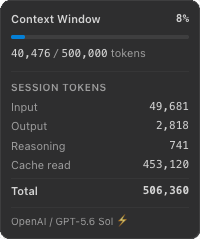
The composer shows context-window fill, and session rows show token use. The context popup separates input, output, reasoning, cache reads, cache writes, and sub-agent tokens. It also shows session cost when OpenCode reports it.
Run /stats or Varro: Usage Stats for a Markdown report from retained OpenCode history across all projects. It covers token use and total assistant duration for today, 7 days, and 30 days, grouped by provider and model. /stats all adds all retained history.
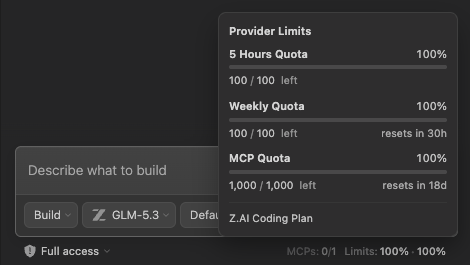
Varro shows quota windows, reset times, and available OpenAI/Codex or Z.ai usage-limit resets when supported provider endpoints supply them. Direct limit checks support OpenAI/Codex, GitHub Copilot, OpenRouter, xAI, Ollama Cloud, Z.ai, Kimi for Coding, and OpenCode Go. After a usage-limit error, you can stop retries or switch providers.
Select the wand in the Source Control toolbar or run Varro: Generate Commit Message. Varro uses staged changes if present; otherwise, it uses the unstaged working tree. It follows recent commit style when possible and writes the result to the selected repository's commit input for review.
Varro never mixes staged and unstaged changes, stages files, or commits automatically. It asks before replacing an existing draft, detects source changes during generation, and omits its temporary helper session from chat history. On native Windows, untracked file paths are included but their contents are omitted because Varro cannot guarantee an atomic no-follow read; tracked unstaged diffs are still included.
Varro selects and remembers a local port by default with varro.server.port: "auto". Existing verified servers survive extension updates and reloads without a migration restart. New managed servers require credentials. Set an integer port from 1 through 65535 for a fixed endpoint; explicit ports never silently fall back. For manual server management, set the port explicitly, disable the deprecated debug setting varro.server.autoStart, and run opencode serve --port 4096.
Attachment to a different OS user's listener, or one whose owner cannot be verified, requires confirmation before sessions or events are loaded, even with supplied credentials. This prevents accidental attachment; it does not secure an unauthenticated server against other clients. See ownership and migration.
The status bar shows the active OpenCode version and available updates. On macOS and Linux, varro.server.autoUpdate installs updates within the installed CLI family: @opencode/cli for v2 or opencode-ai for v1. Updating v1 does not migrate it to v2. Native Windows does not replace the CLI in the background. It shows an update prompt, waits for active work to finish, and stops a Varro-managed server before opening the update command so Windows releases its lock on opencode.exe. Stop a separately managed server yourself before updating.
Varro reloads global OpenCode configuration when OpenCode is idle. Changes to project configuration may require Varro: Restart Server. This command waits for active work and only restarts a server managed by Varro. Restart a manually launched server in its terminal.
- VS Code or VSCodium 1.120 or newer
- Node.js 22.22.2+ on Node 22, or Node 24.15.0+
- OpenCode v2 CLI 2.0.5+ recommended, or v1 CLI 1.16.0+, on
PATHor configured throughvarro.server.command. Tested with v2 2.0.20 and v1 1.18.33 - A trusted, non-virtual workspace. Remote workspaces run Varro and OpenCode on the remote extension host
- Usage guide
- Docker Sandboxes with Remote SSH: suggested step-by-step setup for running Varro and OpenCode inside a sandbox
- Docker and remote servers: advanced setup with reduced functionality, not recommended for general use
- Permissions guide
- Configure primary agents
- VS Code fork compatibility
- Development guide
- Architecture overview
- Issues and feature requests