To build an interactive and visually appealing graphical representation of the Periodic Table of the Elements using a Collection View. The data will be fetched from our elements endpoint and stored in Core Data. We'll also create a dynamic cell layout using a separate nib file.
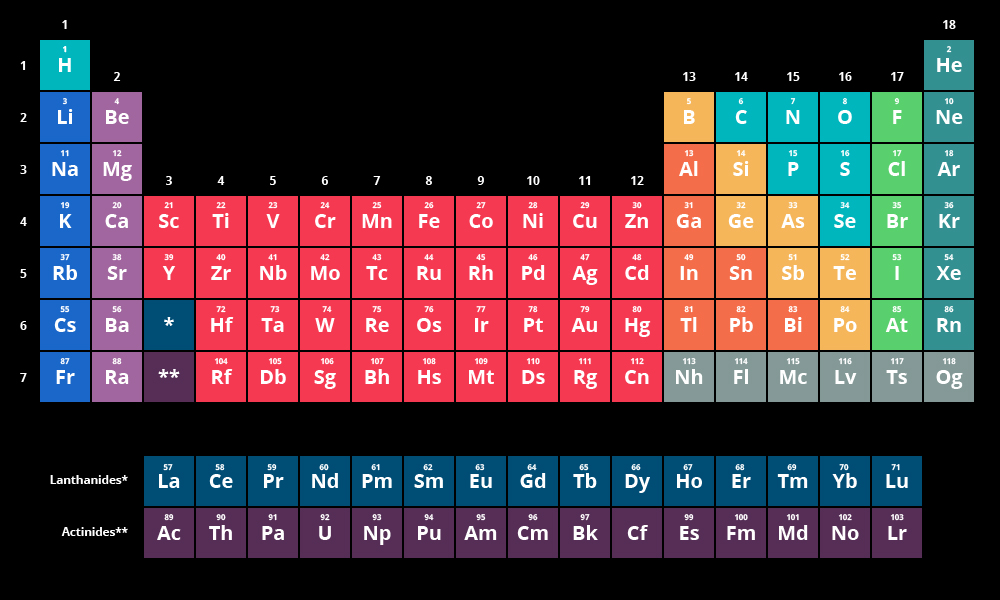
We'll start with a monochrome version, including elements 57 and 89 in the main table while temporarily ignoring the rest of the Lanthanides and Actinides.
Also fun! - A cute discovery from related videos.
- Fork and clone the repository.
- Create a project named PeriodicTable.
- Modify the storyboard to feature a Collection View embedded in a Navigation Controller.
- Create a
UICollectionViewCellsubclass with an associated XIB file. - Register the class in your collection view:
// Register cell classes
self.collectionView!.register(UINib(nibName:"ElementCollectionViewCell", bundle: nil), forCellWithReuseIdentifier: reuseIdentifier)- Create a custom view named
ElementView.swift. - Create an associated nib file
ElementView.xib. - Add the custom view to your collection view cell.
- Integrate labels for element symbol and atomic number, and connect them.
- Test the collection view using sample data:
let data = [("H", 1), ("He", 2), ("Li", 3)]- Create a Data Model file.
- Define an entity
Elementwith attributes:symbol(String)name(String)number(Integer, not optional & indexed)group(Integer)weight(Double)
- Add a unique constraint on
numberto prevent duplicate entries.
- Import
DataController.swiftfrom the CoreArticles project. - Create
Element+JSON.swift(for JSON parsing). - Fetch data using:
https://api.fieldbook.com/v1/5859ad86d53164030048bae2/elements- Integrate
DataControllerin AppDelegate. - Initialize
FetchedResultsController(reference from CoreArticles table view controller).
- Start with all elements in a single section.
- Then, group elements by periodic group and sort by group & number.
- Optimize the layout to balance the periodic table structure.
Excited to see this come to life! Let’s make it engaging, informative, and user-friendly!