Turn any phone or tablet into a low-latency wireless microphone for your PC, over your local network — no app to install, just a web browser.



QuicMic runs a tiny server on your computer and serves a web page to your phone. The phone captures your microphone and streams raw PCM audio back over WebTransport (QUIC/UDP) — with an automatic WebSocket (TCP) fallback — into a virtual audio device, so any app on your PC (Discord, OBS, Zoom, games…) can use your phone as a microphone.
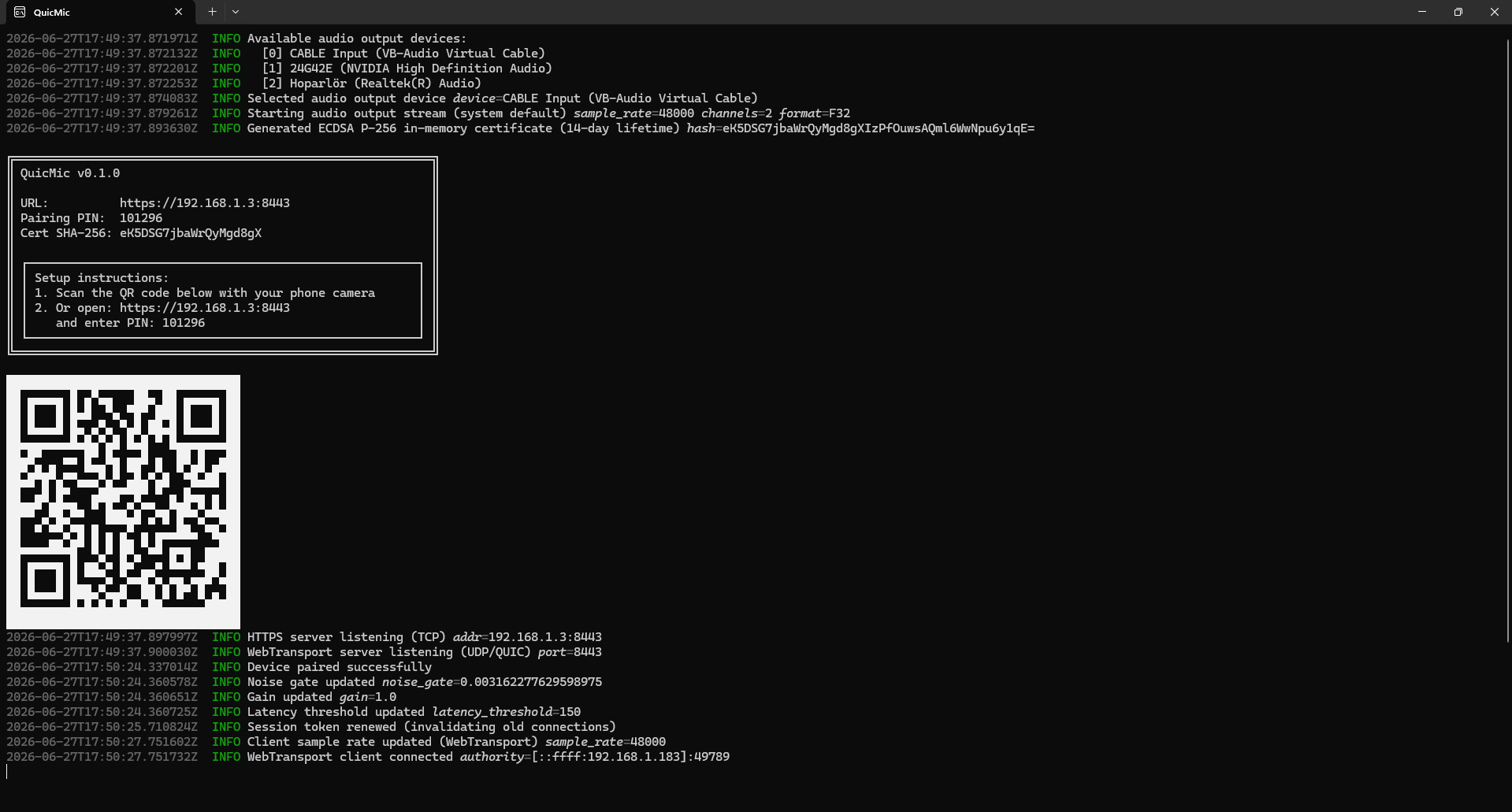
- Low latency — unreliable QUIC datagrams over LAN, a lock-free SPSC ring buffer, and on-the-fly resampling keep mouth-to-speaker delay small.
- No installation on the phone — it's just a web page; works on iOS Safari, Android Chrome, and desktop browsers.
- Secure pairing — a random 6-digit PIN with brute-force lockout; the PIN never leaves the device in plaintext requests.
- QR-code setup — scan the code printed in the terminal to open the page pre-filled with the PIN.
- Live audio controls — noise gate, gain, and latency-recovery sliders, adjustable at runtime from the phone.
- Eco Mode — a black-screen overlay that keeps streaming alive while saving battery / preventing OLED burn-in.
- Resilient — automatic reconnect on transient drops, instant handover on page refresh, and reliable shutdown detection.
- Single self-contained binary — the web assets are embedded; no runtime dependencies.
- A virtual audio output device on the PC (see setup). QuicMic plays the incoming audio into it; other apps then select it as their microphone.
- A phone/tablet and PC on the same local network.
- A modern browser on the phone (see Supported browsers).
QuicMic outputs to a virtual device. Install one and (optionally) pass its name with --device.
Windows — VB-CABLE
- Install VB-CABLE. The default device name is
CABLE Input(QuicMic's default on Windows). - In the app where you want to use the mic, select
CABLE Outputas the microphone.
macOS — BlackHole
- Install BlackHole (e.g.
brew install blackhole-2ch). QuicMic's default device name isBlackHole. - Select BlackHole as the input device in your target app.
Linux — PulseAudio / PipeWire null sink
# Create a virtual sink named "VirtualQuicMic" (QuicMic's default on Linux).
pactl load-module module-null-sink sink_name=VirtualQuicMic \
  sink_properties=device.description=VirtualQuicMic
Your apps can then use the sink's monitor as a microphone source.
Grab the latest binary for your platform (Windows/Linux/macOS, x86_64 and arm64) from the Releases page, extract it (.zip on Windows, .tar.xz on Linux/macOS), and run it from a terminal.
Unsigned binaries. The release builds are not code-signed, so the OS may warn on first run:
- Windows (SmartScreen): click More info → Run anyway.
- macOS (Gatekeeper): right-click the binary and choose Open, or run
xattr -dr com.apple.quarantine ./quicmic.
Requires a Rust toolchain (built and tested with Rust 1.96; CI builds on stable).
git clone https://github.com/Fix3dll/QuicMic.git
cd quicmic
cargo build --release
# binary at target/release/quicmic (quicmic.exe on Windows)
Building with w64devkit (MinGW-w64 / the x86_64-pc-windows-gnu toolchain)
Most Windows Rust installs use the MSVC toolchain (the default), which builds QuicMic with no extra steps. If you instead build with the x86_64-pc-windows-gnu toolchain on a recent w64devkit, the link step can fail with:
error: linking with `cc` failed
  = note: ... cannot find -lgcc_eh
Recent w64devkit builds (GCC 16.x) merge the unwinder into libgcc.a and no longer ship a separate libgcc_eh.a, but Rust's gnu target still asks the linker for it. Create an empty libgcc_eh.a in your toolchain's library directory — the real unwinder lives in libgcc.a, so this stub only satisfies the linker and does not change the resulting binary:
# Run from the w64devkit shell. Places the stub next to the real libgcc.a.
ar rcs "$(dirname "$(gcc -print-libgcc-file-name)")/libgcc_eh.a"
Then cargo build works normally. This is a one-time, machine-local toolchain step — nothing in the repository needs to change. See w64devkit#52 for background.
-
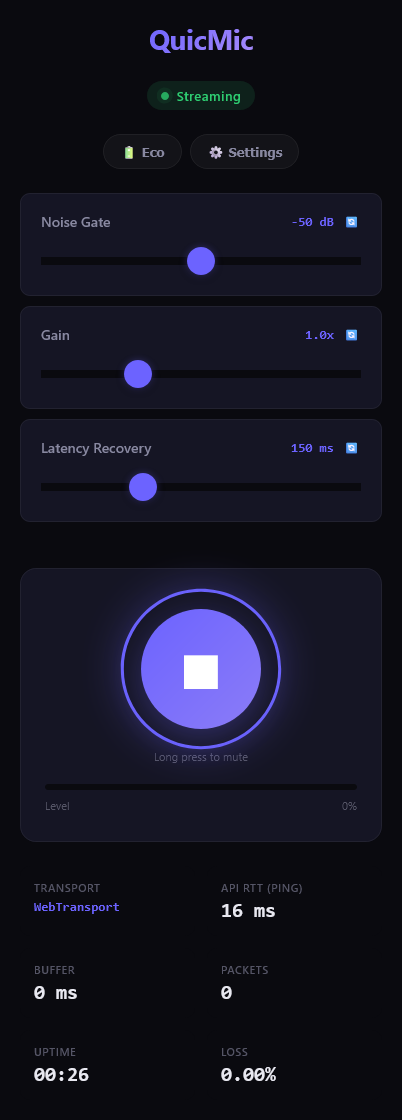
Make sure your virtual audio device is installed and start the server:
quicmic
It prints a banner with the URL, PIN, and a QR code.
-
On your phone, either scan the QR code or open the printed
https://<PC-IP>:8443URL and enter the PIN. -
Tap the microphone button to start streaming. Long-press it to mute.
QuicMic generates a self-signed TLS certificate on the fly (a LAN IP can't get a publicly trusted certificate). When you open the page, the browser will warn that the connection is not private / not secure. This is normal on your own network:
- Tap Advanced → Proceed to
<your-PC-IP>(unsafe) to continue. - The low-latency WebTransport stream itself does not show this warning — it pins the certificate by hash — but the initial page load over HTTPS does.
On iOS 18, WebTransport is behind a feature flag and must be turned on once:
Settings → Apps → Safari → Advanced → Feature Flags →
WebTransport→ enable it.
Without it, QuicMic automatically falls back to the WebSocket transport (slightly higher latency). Newer iOS versions enable WebTransport by default.
Run quicmic -h for the full list. The main options:
| Option | Default | Description |
|---|---|---|
-p, --port <PORT> |
8443 |
Port used for both HTTPS (TCP) and WebTransport (UDP). Also via QUICMIC_PORT. |
-d, --device <NAME> |
platform default | Output device, matched as a case-insensitive substring. Defaults: CABLE Input (Windows), BlackHole (macOS), VirtualQuicMic (Linux). Also via QUICMIC_DEVICE. |
--list-devices |
— | List available audio output devices and exit. |
--ip <IP> |
auto-detected | Override the auto-detected LAN IP address. |
--pin <PIN> |
random | Use a fixed pairing PIN instead of a random 6-digit one. |
--noise-gate <DB> |
-50 |
Initial noise-gate threshold in dB, from -100 (Off) to 0. Matches the web UI slider. Adjustable at runtime. |
--gain <VALUE> |
1.0 |
Initial gain multiplier (1.0 = unity). Adjustable at runtime. |
--latency-threshold <MS> |
150 |
Initial latency-recovery threshold in milliseconds (0 = off). Adjustable at runtime. |
--dump-certs |
— | Write the generated certificate/key to certs/ for debugging. |
--no-update-check |
— | Disable the startup check for a newer release on GitHub (also via QUICMIC_NO_UPDATE_CHECK). |
-h, --help / -V, --version |
— | Show help / version. |
Find your device name first if needed:
quicmic --list-devices
quicmic --device "CABLE Input"From the phone's ⚙️ Settings panel (synced to the server live):
- Noise Gate (−100 dB Off … 0 dB) — silences input below a threshold, with a short hold to avoid choppiness.
- Gain (0.2×–3.0×) — boosts or attenuates the signal.
- Latency Recovery (0 Off … 500 ms) — if the server's buffer grows past this, the oldest audio is skipped to catch back up.
- 🔋 Eco Mode — black-screen overlay; keeps streaming alive behind a screen wake lock.
- Mute — long-press the mic button (with haptic feedback on devices that support the Vibration API, e.g. Android; iOS Safari does not).
The web assets (HTML/CSS/JS) are embedded in the binary, but you can override them without recompiling: create a web/ directory next to the executable and drop your modified files in it. QuicMic serves a file from that directory if it exists, otherwise it falls back to the embedded copy.
quicmic.exe
web/
├── index.html
├── style.css
├── app.js
└── worklet.js
Assets are served with a content-based ETag and Cache-Control: no-cache, so your edits show up on the next reload instead of being cached. Copy the originals from this repository's web/ directory as a starting point.
| Browser | Transport |
|---|---|
| iOS Safari (primary target) | WebTransport (see the iOS 18 flag), else WebSocket fallback |
| Android Chrome / Chromium | WebTransport |
| Desktop Chrome / Edge | WebTransport |
| Desktop Firefox (114+) | WebTransport |
| Older browsers / no WebTransport | WebSocket fallback |
QuicMic tries WebTransport first and transparently falls back to WebSocket when it isn't available, so it still works on browsers without (working) WebTransport support.
QuicMic is designed to be lightweight — lock-free hot paths, no allocations per packet, and zero CPU while idle waiting on the network.
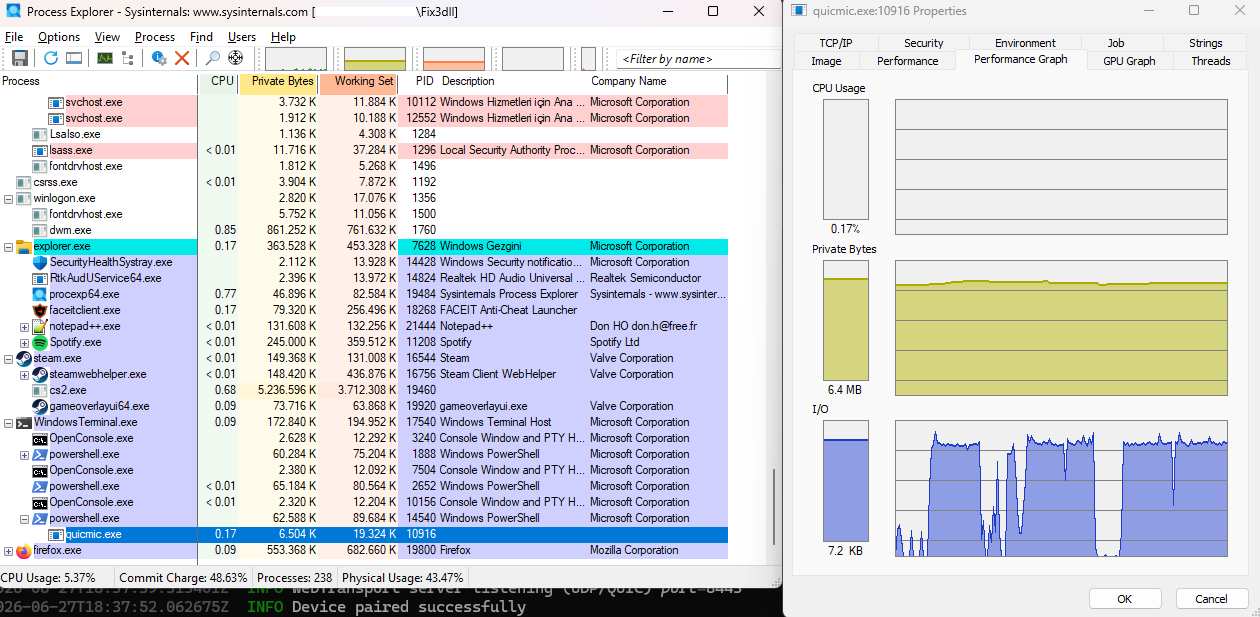
Captured with Sysinternals Process Explorer while streaming, on an Intel Core i7-11800H running Windows 11 (25H2), started with
--no-update-check.
The page won't load / the phone can't connect
- Make sure the phone and PC are on the same network. Some guest Wi-Fi networks and routers with "AP/client isolation" block device-to-device traffic.
- Firewall / antivirus. On first launch, allow QuicMic through Windows Defender Firewall when prompted (at least on Private networks). Some third-party security suites (for example ESET, Norton, Kaspersky) can silently block the port with no prompt at all — if you can't connect, open your security software and allow QuicMic, or allow inbound TCP and UDP on port
8443(or whichever--portyou chose). - If your PC has several network adapters or a VPN, the auto-detected address may be wrong. Override it with
--ip <your-LAN-IP>.
It connects, but the transport shows "WebSocket" instead of "WebTransport"
That's fine — QuicMic automatically falls back to WebSocket (TCP) when the low-latency WebTransport (UDP/QUIC) path isn't available (the browser doesn't support it, or a firewall blocks UDP). On iOS 18, turn on the WebTransport feature flag (see the iOS 18 note above) for the faster path.
The browser warns the connection isn't secure
Expected — the certificate is self-signed (see the note above). Tap Advanced → Proceed.
Connected, but the target app has no sound
In your target app, select the virtual device's output/monitor as the microphone (e.g. CABLE Output on Windows). Run quicmic --list-devices to confirm QuicMic is sending to the right device.
Choppy audio or high latency
Usually Wi-Fi congestion. Prefer a 5 GHz network, move closer to the router, and try lowering the Latency Recovery slider in the in-app settings.
- Pairing uses a random 6-digit PIN; after 5 failed attempts from the same client (tracked per IP) that client is locked out for 30 seconds, so one bad actor can't lock everyone out.
- PINs and session tokens are compared in constant time.
- State-changing API requests are rejected if their
Origindoesn't match the server's own host (a same-origin guard against cross-site requests). - Only one client may stream at a time.
- The TLS certificate is self-signed, in-memory, and short-lived (14 days), regenerated on each start. QuicMic is intended for use on a trusted local network, not the public internet.
On startup, QuicMic makes a single best-effort check for a newer release. It opens one HTTPS request to github.com and reads only the redirect that …/releases/latest returns — just the Location header, so there is no response body, no JSON, and no telemetry. The only thing inherently shared is what any HTTPS request reveals to GitHub: your IP address. The check runs on a background task, never blocks startup, and stays silent on any failure.
Opt out with --no-update-check or by setting QUICMIC_NO_UPDATE_CHECK=1.
cargo fmt --all -- --check                # formatting
cargo clippy --all-targets -- -D warnings # lints
cargo test                                # unit + HTTP integration tests
CI runs formatting on Linux and clippy + tests across Linux, Windows, and macOS (docs-only changes — markdown, images — skip CI). For a deep dive into the architecture, audio pipeline, and design guardrails, see AGENTS.md.
Licensed under the GNU General Public License v3.0 or later — see LICENSE.md.
