
Keep count of a household supply, such as toilet paper or tinned food, and see how fast it goes and how long what's in storage will last. Log from a dashboard card, a button, an NFC tag on the cupboard or a voice command. Everything is stored in your own Home Assistant.
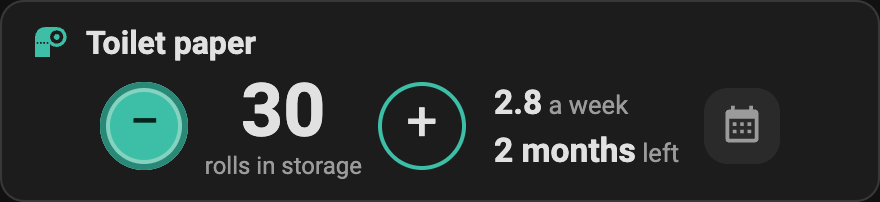
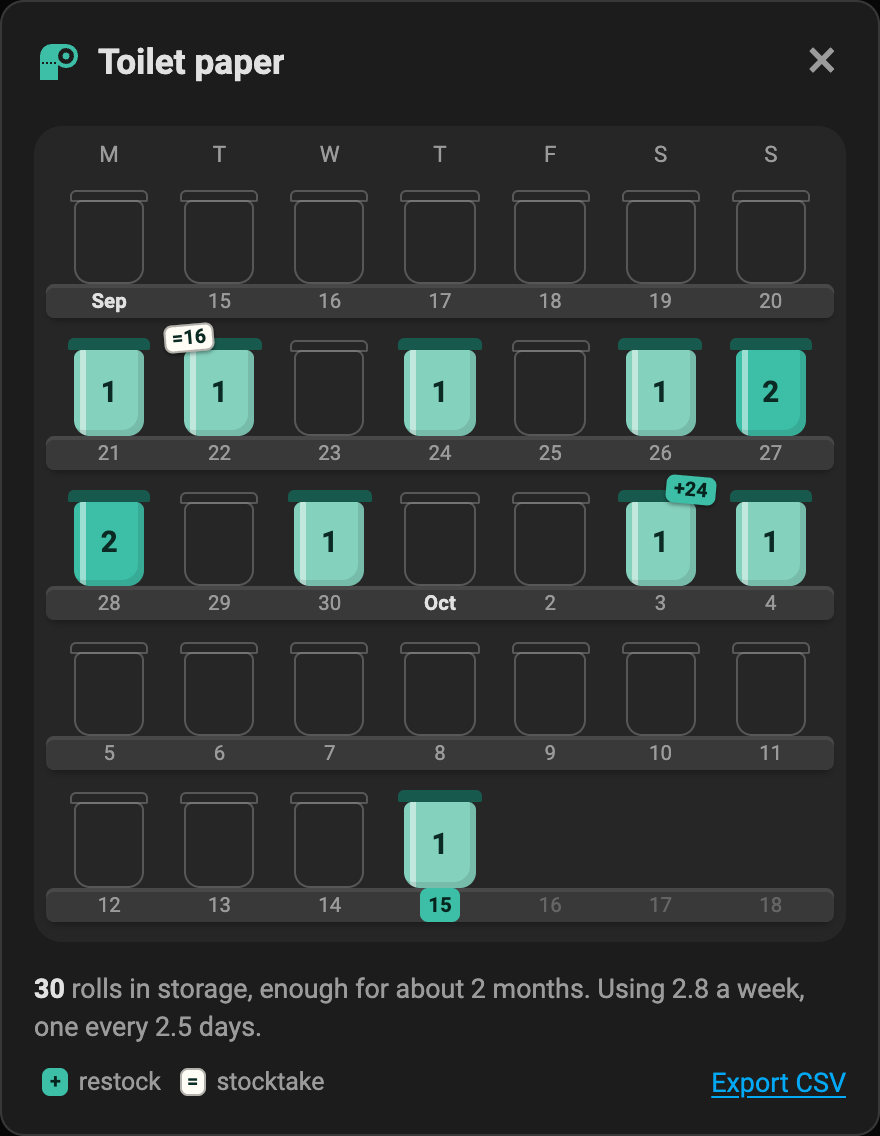
The screenshots use made-up data.
- One tap to take one out of storage, and one to put it back.
- Stocktakes. Count what's there, tap the number and type it in. Everything after counts on from it.
- Restocks, with a note to say where they came from.
- Day by day. A calendar of how many were used each day, with restocks and stocktakes marked. Tap a day to fix it or fill it in.
- How fast it goes. Use per week, one every so many days, and how long what's in storage lasts at that rate.
- Running low. A sensor that turns on at a level you choose, for a reminder to buy more.
- Sensors, buttons, a number and actions, so automations can log and dashboards can graph. The running total feeds Home Assistant's long-term statistics.
- More than one resource. Toilet paper, tinned food, dog food: each is its own device with its own unit.
- Stays in step. Log on one phone and every open card updates.
- Your data. Stored in Home Assistant, with a CSV export on the card.
- Follows your theme, light or dark.
Home Assistant 2025.2 or newer.
- In HACS, open the menu (top right) and choose Custom repositories.
- Add
https://github.com/ClermontDigital/StockTrackwith the type Integration. - Find Stock Track in HACS, download it, and restart Home Assistant.
Copy custom_components/stock_track into your Home Assistant config/custom_components folder and
restart.
Go to Settings > Devices & services > Add integration and choose Stock Track. Give the resource a name, the unit you count it in (rolls, tins, packs), an icon, and, if you'd like the Running low sensor, the level at which it turns on. Add the integration again for each other resource. The icon and the level can be changed later under the resource's Configure button. The unit can't, because Home Assistant keeps the sensors' history in it.
Then count what's in storage and record it as a stocktake, from the card or with the stock_track.stocktake
action. Tracking starts there.
The card is installed with the integration. Edit a dashboard, choose Add card and search for Stock Track, or add it in YAML:
type: custom:stock-track-card| Option | Default | What it does |
|---|---|---|
entry_id |
your first resource | Which resource to show. Pick it from the list in the card editor. |
view |
compact |
compact is one strip: take one, what's in storage, put one back, the use per week, how long it lasts, and a button that opens the calendar in a popup. calendar shows the calendar on the card. |
weeks |
5 |
Weeks in the calendar, from 2 to 12. |
title |
the resource's name | A different heading. |
hide_title |
false |
Leave the heading out, for when the card sits under a heading of its own. |
On the strip, − takes one out of storage and + puts one back. Tap the number to type a stocktake. Until there's a count it asks for one.
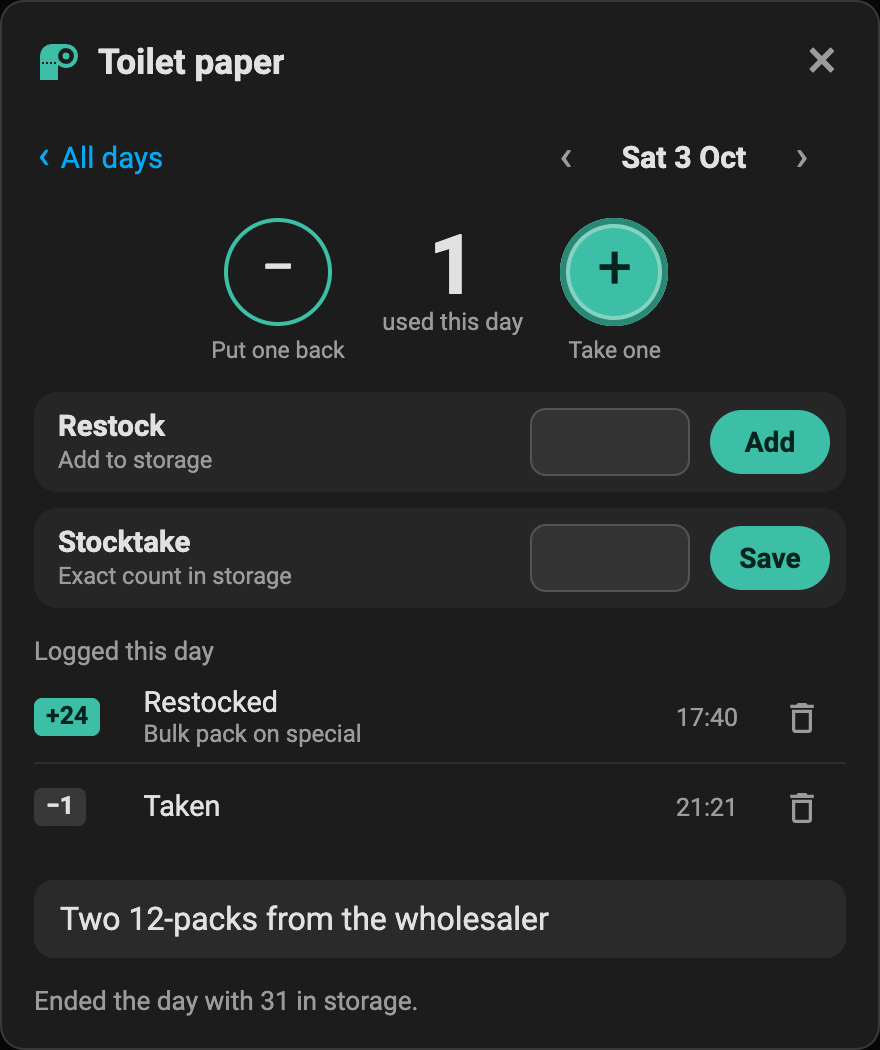
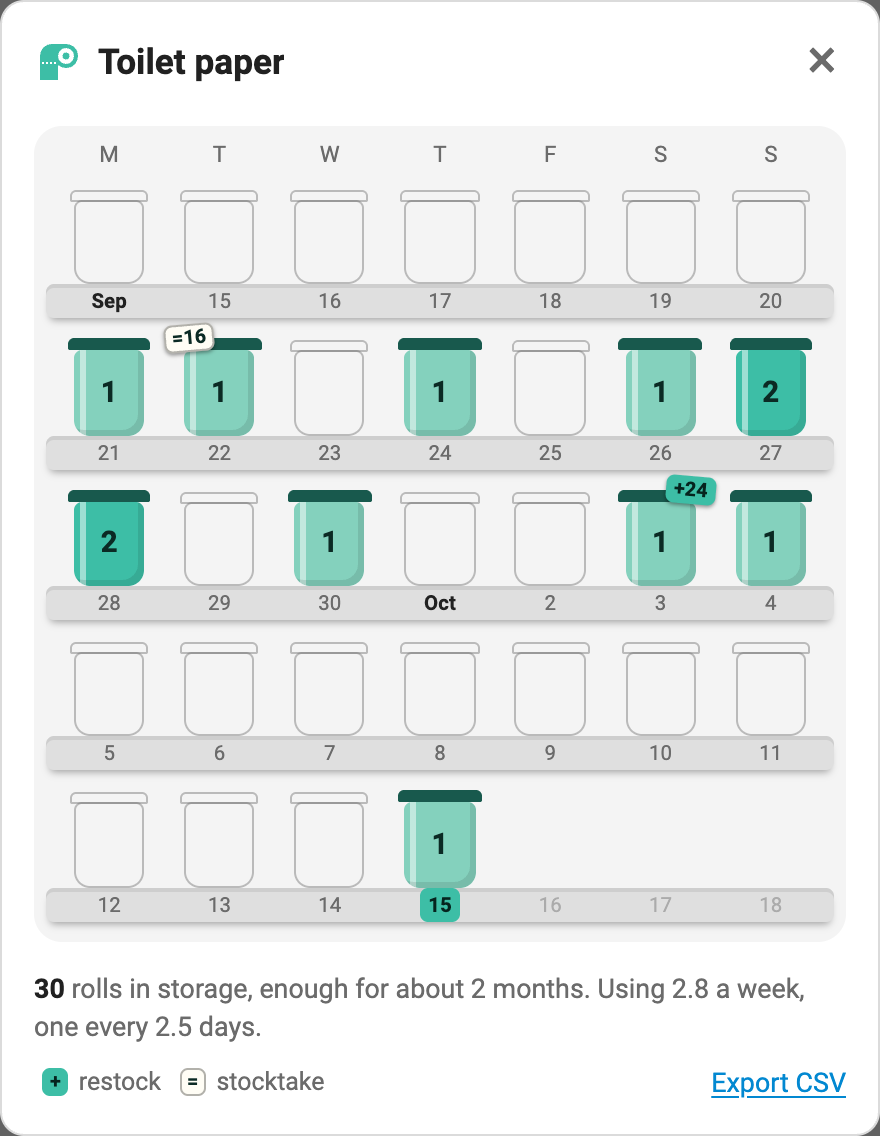
In the calendar, a week runs along each shelf from Monday, with this week at the bottom. Each day is a jar showing how many were used, darker on busier days. A restock day carries a sticker with what went in (+24) and a stocktake day one with the count (=16). Days before tracking began are dashed outlines. Tap a day to open it: take or put back for that day, log a restock or a stocktake, delete something logged by mistake, or add a note. Export CSV downloads the whole log.
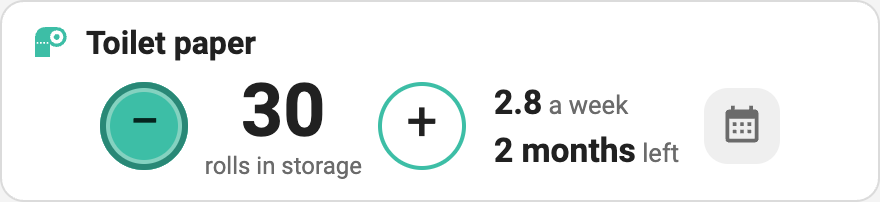
The accent colour can be changed in a theme with stock-track-accent, or on the card with card-mod by
setting --st-accent on ha-card. The popup takes its background, border and accent from the card, so a
card styled with a theme or card-mod gets a matching popup.
If the card doesn't appear after installing, refresh the browser. On a dashboard managed in YAML, add
/stock_track/stock-track-card.js as a JavaScript module resource.
Each resource is a device with these entities. toilet_paper below is the resource's name.
| Entity | What it is |
|---|---|
sensor.toilet_paper_in_storage |
How many are in storage now |
sensor.toilet_paper_used_today |
Taken out of storage today |
sensor.toilet_paper_used_last_7_days |
Today and the six days before |
sensor.toilet_paper_used_this_month |
This calendar month so far |
sensor.toilet_paper_used_total |
Everything ever taken. Use this one for statistics graphs. |
sensor.toilet_paper_weekly_use |
Taken a week, on average over the last 30 days |
sensor.toilet_paper_days_between |
On average, one is taken every this many days |
sensor.toilet_paper_supply_left |
How many days what's in storage lasts at that rate |
sensor.toilet_paper_last_taken |
When one was last taken |
sensor.toilet_paper_last_restock |
The day of the last restock |
binary_sensor.toilet_paper_running_low |
On at the Running low level or below |
number.toilet_paper_stocktake |
What's in storage, as a number you can set. Setting it records a stocktake. |
button.toilet_paper_take_one |
Takes one out of storage |
button.toilet_paper_put_one_back |
One back into storage: undoes one of today's takes, or with none to undo, records one put back |
In storage is unknown until the first stocktake or restock, and the three rate sensors stay unknown until a week has been tracked.
To chart use per day or per week without the card, use a statistics graph on the total:
type: statistics-graph
entities:
  - sensor.toilet_paper_used_total
stat_types:
  - change
period: week
days_to_show: 90
chart_type: bar
That graph counts each one on the day it was logged, not the day it was used: something filled in for yesterday shows up under today. The card always puts it on the right day.
stock_track.take takes some out of storage. amount defaults to 1 and date to today.
action: stock_track.take
data:
  amount: 2
stock_track.restock puts more into storage.
action: stock_track.restock
data:
  amount: 24
  date: "2026-10-12"
  note: The big pack from the co-op
stock_track.stocktake records an exact count of what's in storage.
action: stock_track.stocktake
data:
  count: 37
All three take an optional note, and an optional entry_id to choose the resource. It's only needed when
you have more than one.
An NFC tag on the cupboard door that takes one out each time it's scanned:
triggers:
  - trigger: tag
    tag_id: your-tag-id
actions:
  - action: button.press
    target:
      entity_id: button.toilet_paper_take_one
A reminder to buy more when it's running low:
triggers:
  - trigger: state
    entity_id: binary_sensor.toilet_paper_running_low
    to: "on"
actions:
  - action: notify.mobile_app_your_phone
    data:
      message: >-
        Toilet paper is running low: {{ states('sensor.toilet_paper_in_storage') }} left,
about {{ states('sensor.toilet_paper_supply_left') }} days.- In storage replays the log in the order things happened. A stocktake sets it to the number counted, a restock adds to it and a take subtracts from it. It never goes below zero, and it's unknown until the first stocktake or restock: takes alone don't say how many are left.
- Put one back is for one that came out but wasn't used. It undoes one of that day's takes, so it isn't counted as used. If there's no take to undo, it's recorded as put back, which isn't a restock. If a stocktake was done while it was out, it's added back after the stocktake too.
- Something logged for an earlier day is placed at midday on that day. A stocktake for an earlier day is the count at the end of that day, so it comes after everything else logged for it.
- Dates can go back as far as 1 January 2000, and forward as far as tomorrow, for a phone that's a time zone ahead.
- Tracking starts at the first stocktake (or the first take, if there has never been a stocktake). Days before that weren't tracked, so they don't count as days nothing was used, and a restock logged before it doesn't start tracking.
- The rates need a week of tracking, and look back over the last 30 days at most: per week, one every so many days, and the supply left, which is what's in storage at that rate, rounded down to whole days.
- Weeks run Monday to Sunday.
Each resource's log is a small file in Home Assistant's .storage folder (stock_track.<id>), so it's
included in your Home Assistant backups. Nothing is sent anywhere. Export CSV on the card downloads the
whole log. Deleting a resource from Devices & services deletes its log.
Anyone signed in to your Home Assistant can view. Logging needs the same permission as pressing the resource's buttons, so a read-only user can look but not change anything.
The card talks to the integration over Home Assistant's WebSocket connection. entry_id is the resource's
config entry id; dates are YYYY-MM-DD.
| Command | Fields | Returns |
|---|---|---|
stock_track/resources |
Each resource's entry_id, name, unit, icon and low_level |
|
stock_track/overview |
entry_id, date (optional), days (optional, 35) |
The resource, today's date, the chosen day with what was logged on it, the statistics, and a day-by-day series |
stock_track/events |
entry_id, start, end (both optional) |
Everything logged in the range, and the day notes |
stock_track/change |
entry_id, kind (take or add), delta (optional, 1), date (optional), note (optional) |
A positive delta logs that many; a negative one undoes that many of the day's latest. Returns what changed. |
stock_track/put_back |
entry_id, date (optional) |
One back into storage. undone says whether a take was undone. |
stock_track/stocktake |
entry_id, count, date (optional), note (optional) |
What's in storage afterwards |
stock_track/set_note |
entry_id, date, note |
The day's note |
stock_track/delete_event |
entry_id, event_id |
The id deleted |
stock_track/subscribe |
entry_id |
An event each time the resource's log changes, and at midnight |
python -m venv .venv && . .venv/bin/activate
pip install -r requirements_test.txt
pytest
custom_components/stock_track/engine.py holds the calculations and has no Home Assistant imports.
The card is one plain JavaScript file with no build step:
custom_components/stock_track/www/stock-track-card.js.
The card has its own checks, run in headless Chrome against the real API handlers and storage rules with
made-up data. They also retake the screenshots in images/. mutate.cjs breaks the card on purpose, in
temporary copies, to show the checks notice.
npm install --no-save puppeteer-core
node tests/card/drive.cjs
node tests/card/mutate.cjs
Set CHROME to your Chrome or Chromium if it isn't in the default macOS location, and SHOTS=0 to leave
the screenshots alone. To look at the card by hand, run python tests/card/server.py and open
http://127.0.0.1:8798/.
Bug reports and ideas are welcome in Issues.
Pull requests are welcome too; please include a test for anything in engine.py or the API.