
A MacOS & Windows Firefox theme to look more like Big Sur Safari. (For Firefox 70+)

Aim is to make Firefox look more like MacOS Big Sur Safari.
This is a CSS theme adapted to work on MacOS from the Linux GTK theme.
Based on https://github.com/vinceliuice/WhiteSur-gtk-theme/tree/master/src/other/firefox
(This is a quick modification, and is not written from scratch.)
To see the theme before applying to your own Firefox profile:
pipx install "fxcss[images]"     # no pipx? see pipx.pypa.io (brew install pipx on macOS)
fxcss try AdamXweb/WhiteSurFirefoxThemeMacOS
That opens a throwaway Firefox with the theme applied and leaves your main
profile untouched. Add --dark for dark mode, or
--with compact-tabs,tabs-swapclose to try the optional stylesheets described
below. Quit the browser and everything gets reset.
The default way, on macOS, Windows and Linux — fxcss 0.16 or newer:
pipx install "fxcss[images]"     # no pipx? see pipx.pypa.io (brew install pipx on macOS)
fxcss install AdamXweb/WhiteSurFirefoxThemeMacOS
It installs into your Firefox profile all on macOS, Windows and Linux, including snap and flatpak Firefoxes on Linux. A Firefox in an unusual place is reachable via FXCSS_PROFILE_ROOTS; when more than one installed Firefox has profiles, fxcss asks which one to update. Your existing chrome/ folder is backed up first, and optional stylesheets from custom/ load with --with, e.g. --with compact-tabs,tabs-swapclose.
Run it without --with and it asks which optional stylesheets to include. It also labels each profile with the Firefox it belongs to ([Release], [Developer Edition], [ESR]), so you can pick the right one.
fxcss profiles --check     # what is installed where, and whether it is current
fxcss upgrade              # take the newest release, keeping a way back
fxcss rollback             # …and that is the way back
fxcss upgrade fetches the newest release and re-installs it, keeping the
version it replaced as a chrome.backup-* so fxcss rollback can undo it.
It refuses to overwrite files you have edited yourself — the install records
a hash per file, so it knows which ones those are — and stops if an optional
stylesheet you had chosen was renamed or dropped, rather than letting that
option quietly switch itself off.
fxcss upgrade --check changes nothing and answers through its exit code
(0 up to date, 1 an upgrade is available), which is what to point a cron job at.
Already installed the theme another way? fxcss adopt identifies what you
have by hashing every file in your chrome/ folder and matching it against
this repository's own releases, then records it so the commands above work:
fxcss adopt AdamXweb/WhiteSurFirefoxThemeMacOSIt copies your existing chrome/ to a backup rather than replacing anything,
and reports any files that already differ from the release it matched — an
upgrade will not overwrite those without being told.
To put everything back the way it was:
fxcss uninstallDownload the latest release, or clone the repo above.
A script has been added to streamline the installation process.
Open terminal in the directory of the repo, and run bash install.sh
Follow the prompts
The script supports the following flags
-cLeft hand side tab close button-wLeft hand side window close button-pMakes tabs height compact like current Safari-fTo specify the default firefox folder (it will try to find the profile folder to place the theme within)-lDefault location of most Linux installations- The script installs to ESR profiles (
*.default-esr) as well as release ones -uRemove the animation on URL bar to be clickable throughout-nRemoves the identity colour from tabs-vRe-enables the tabview button-eHides the extension button-sSingle tab view (Tabs hidden when only one tab)-t <name>Colour theme (see Colour themes below)-iIncrease contrast (see Colour themes below)-rRemove the theme
e.g. To install with script, with the tab close button left hand side: bash install.sh -c
Rendered by CI with fxcss from the current theme; they refresh automatically when the theme changes. Each one is cropped to the part of the window the option changes.


-u Standard URL bar
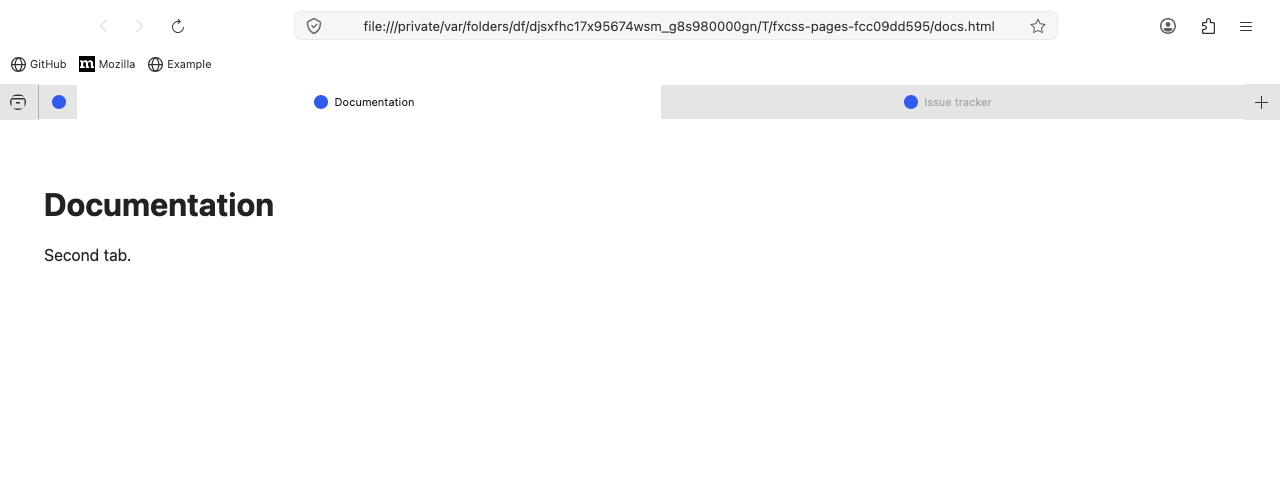
No crop for this one: it changes nothing measurable on current Firefox, so there is no region to crop to. The selectors this sheet touches have moved.
-n No identity colour on tabs
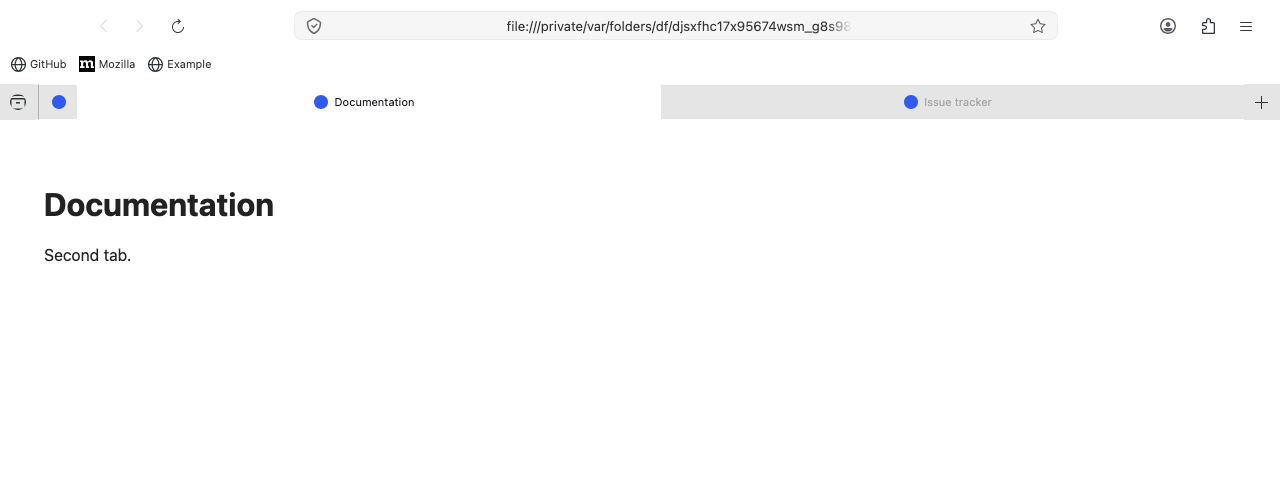
No crop for this one: it changes nothing measurable on current Firefox, so there is no region to crop to. The selectors this sheet touches have moved.


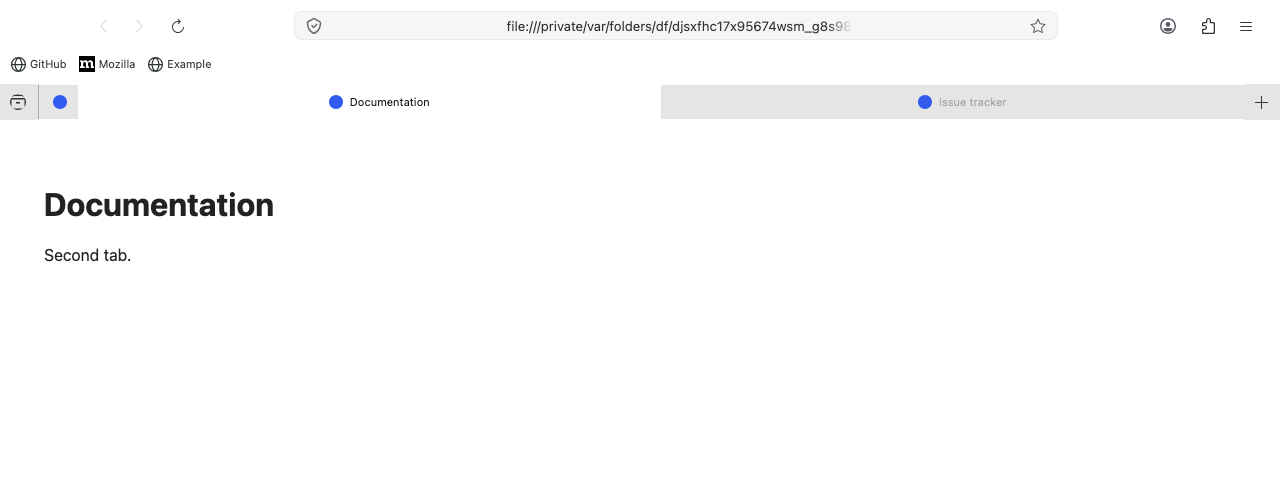
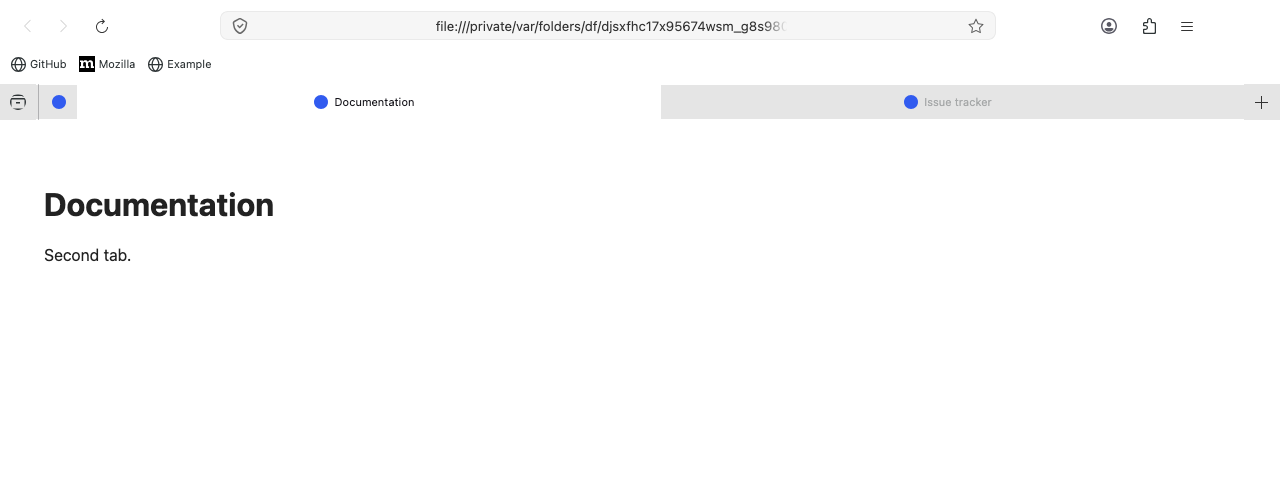
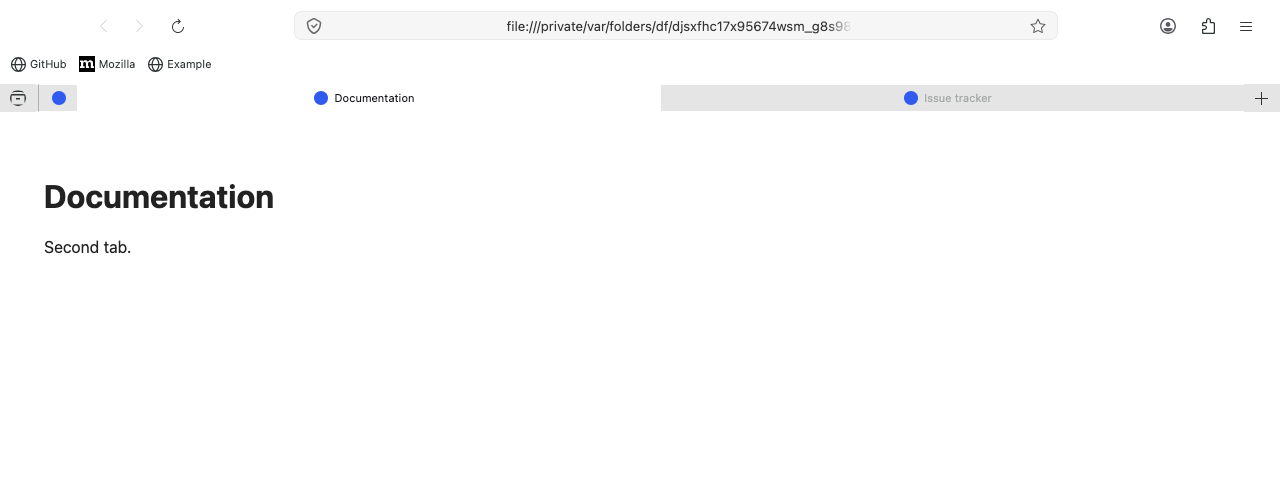
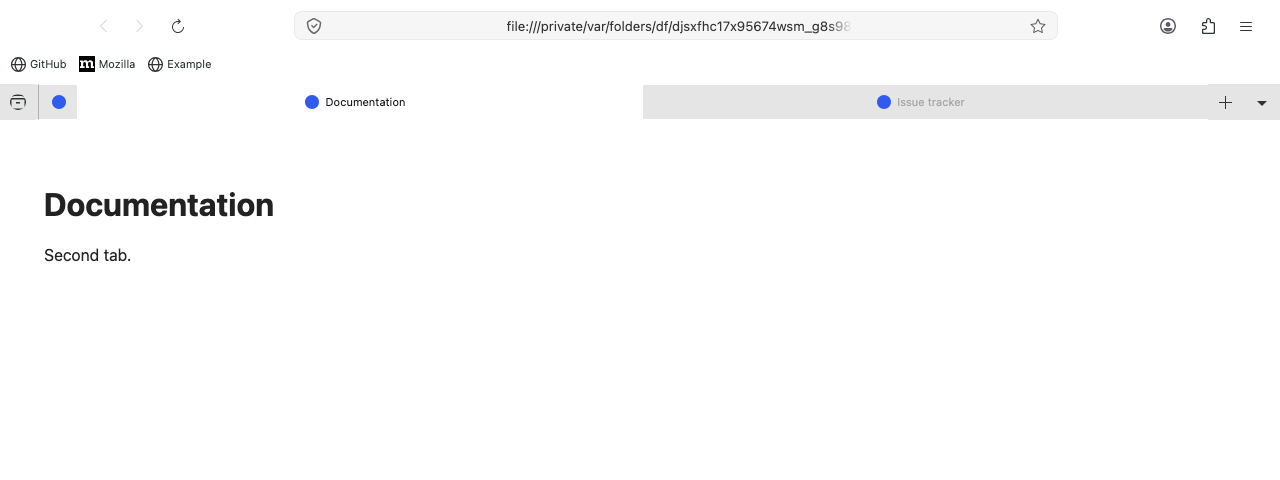
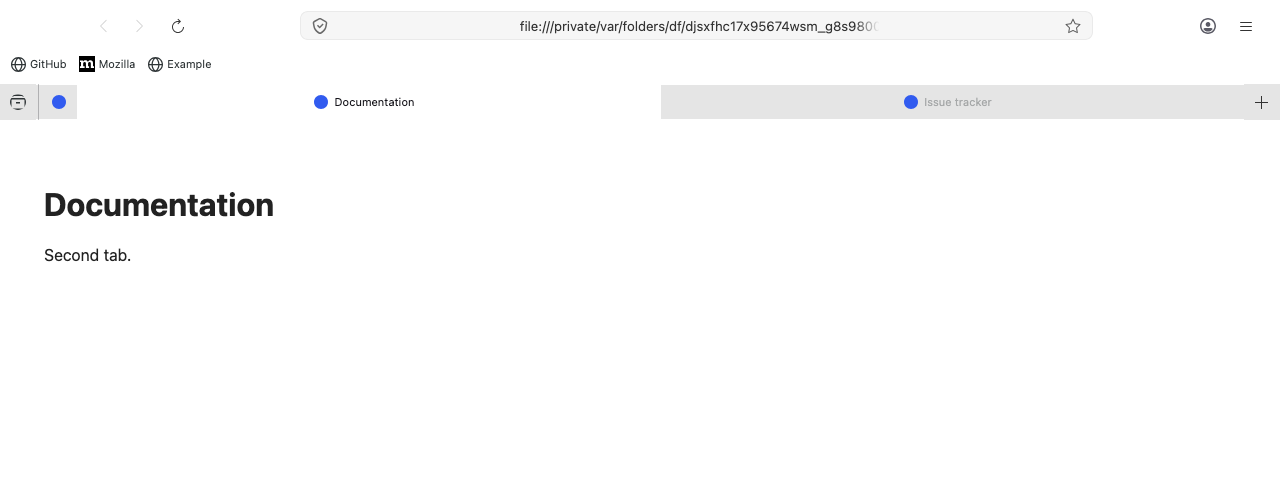
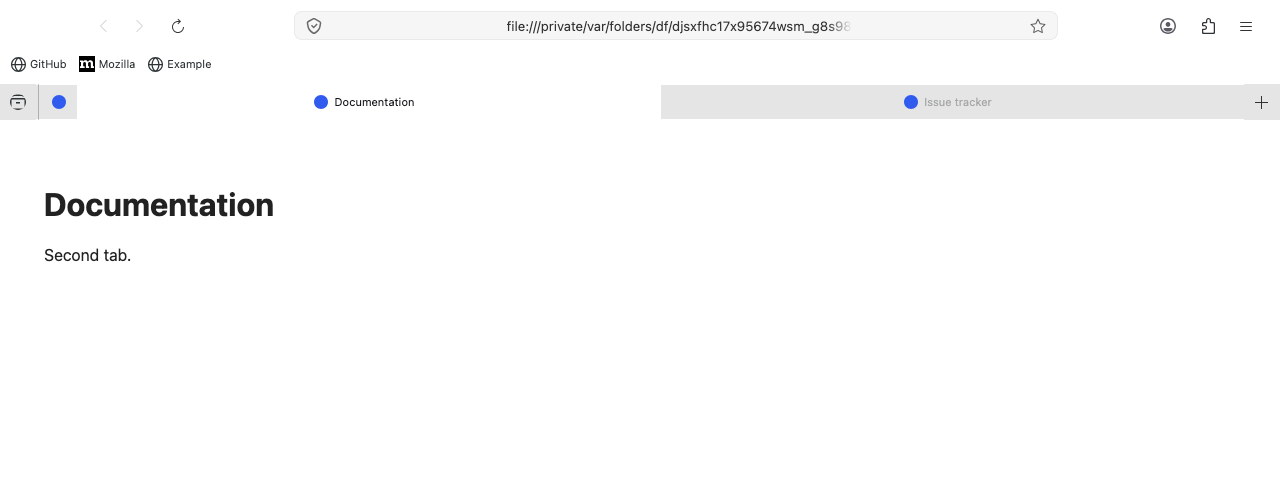
The Safari layout, with another palette on top. Install with -t <name>, e.g. bash install.sh -t dracula
Available themes: dracula, catppuccin-latte, catppuccin-frappe, catppuccin-macchiato, catppuccin-mocha, nord, gruvbox-dark, gruvbox-light, solarized-dark, solarized-light, tokyonight, material-ocean, material-palenight, one-dark, rose-pine, everforest-dark, ayu-mirage, night-owl, github-dark, monokai-pro
A palette covers the window chrome, the panels (app menu, extensions, site information and permissions, the address bar's search-engine list), the bookmarks and history sidebars, the Library window, the DevTools toolbox, and the about: pages — about:preferences, about:addons, about:newtab.
One palette at a time. Every colour theme redefines the same set of variables, so installing two means whichever loads last silently replaces the other — the result looks like neither. install.sh -t takes a single name, and fxcss 0.16 or newer refuses two of them outright, naming the pair:
$ fxcss install AdamXweb/WhiteSurFirefoxThemeMacOS --with theme-nord,theme-dracula

  theme-dracula and theme-nord are alternatives, not additions: both set the
  same 122 declaration(s), so whichever loads last replaces the other entirely
Palettes combine freely with the layout options (compact-tabs, tabs-swapclose and the rest) — those touch different declarations, and fxcss says nothing about them.
DevTools follows the palette only when its own theme agrees with Firefox's appearance, since DevTools has a separate light/dark setting of its own (Settings > Themes in the toolbox). If they disagree, DevTools keeps its own colours rather than mixing the two.
bash install.sh -t nord -i-i pushes text to full strength, makes borders and separators visible, turns off the dimming on the idle address bar, and brings back the focus ring the palettes hide. It works with any palette, and on the base theme with no -t at all.
You do not need the flag if you already ask for more contrast at the OS level — macOS System Settings > Accessibility > Display > Increase contrast, or its Windows and GNOME equivalents. The theme responds to that on its own; -i is for turning it on regardless.
Ayu
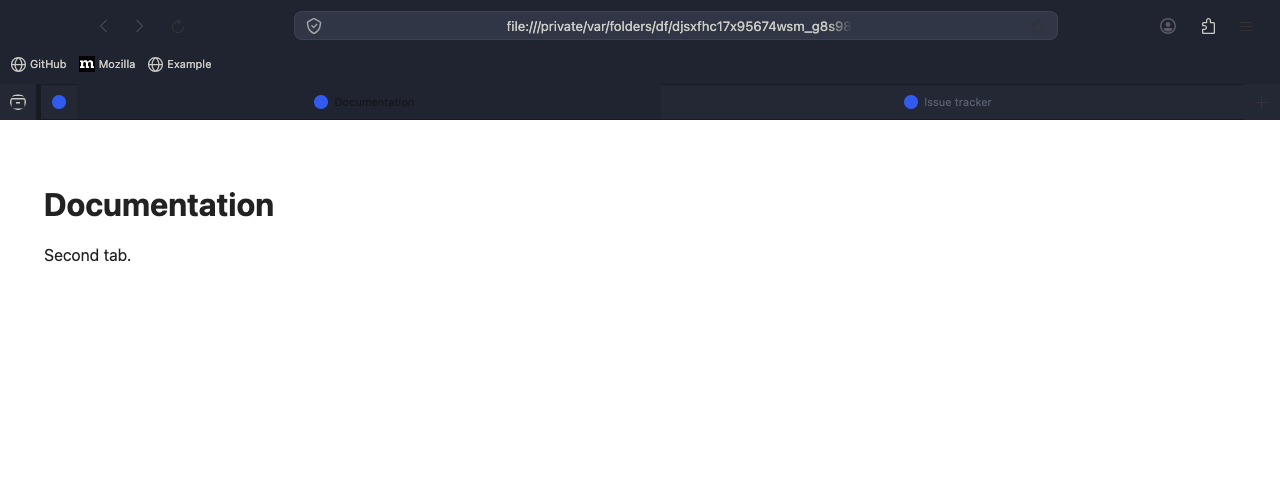
Catppuccin (4)
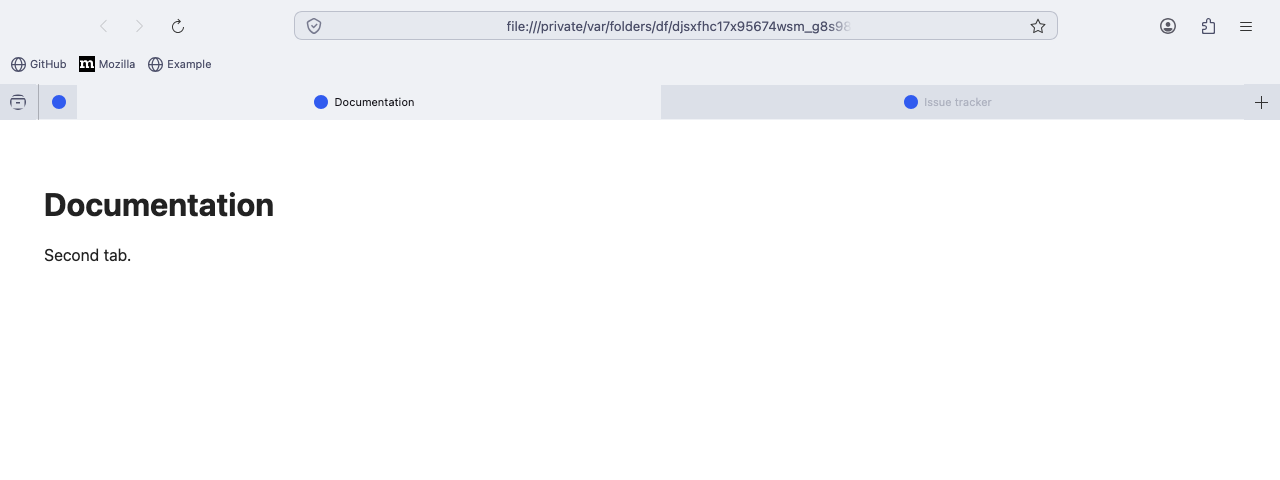
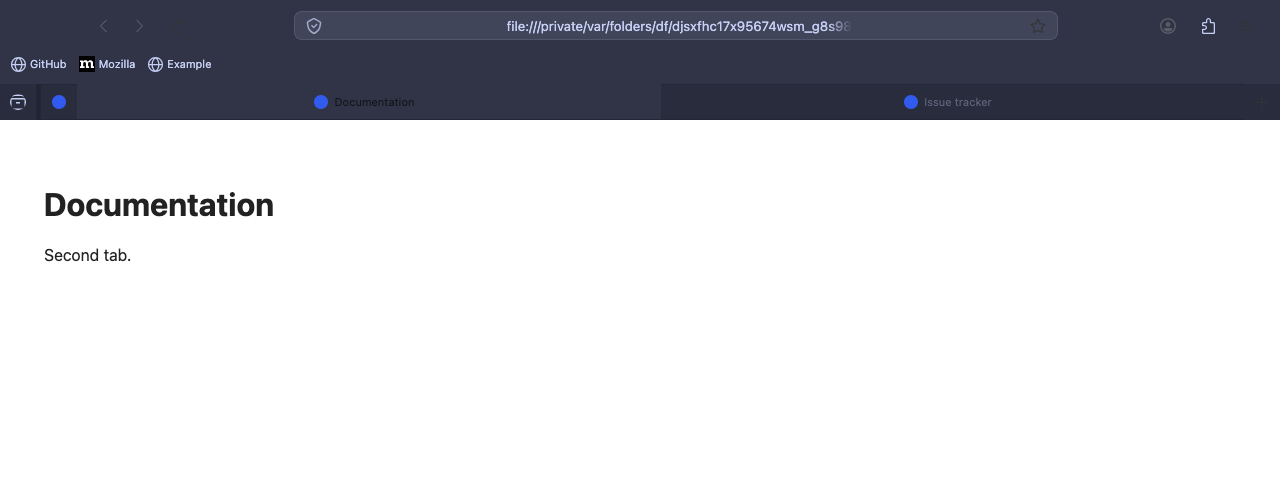
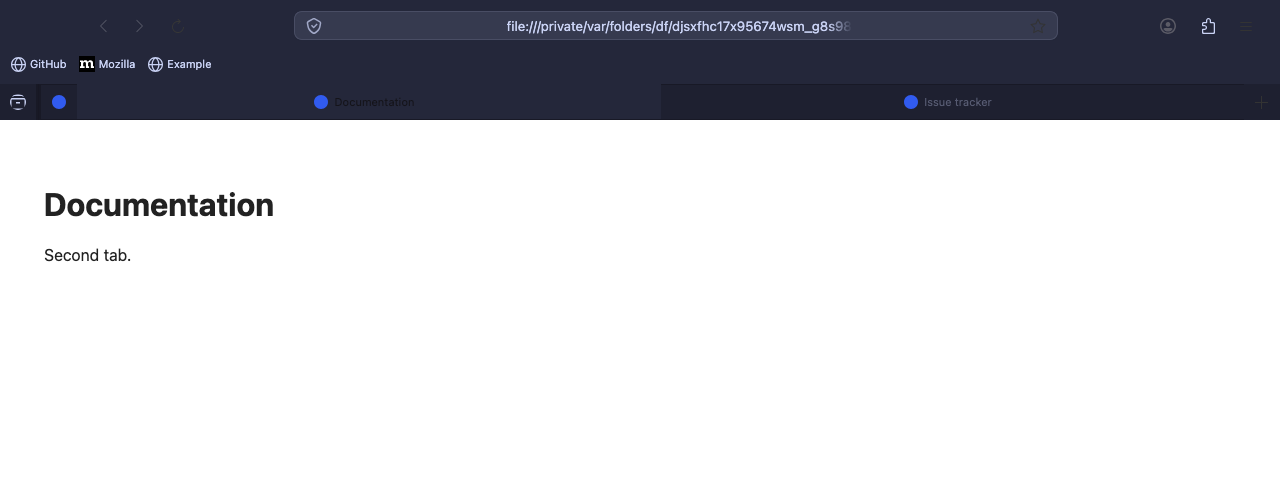
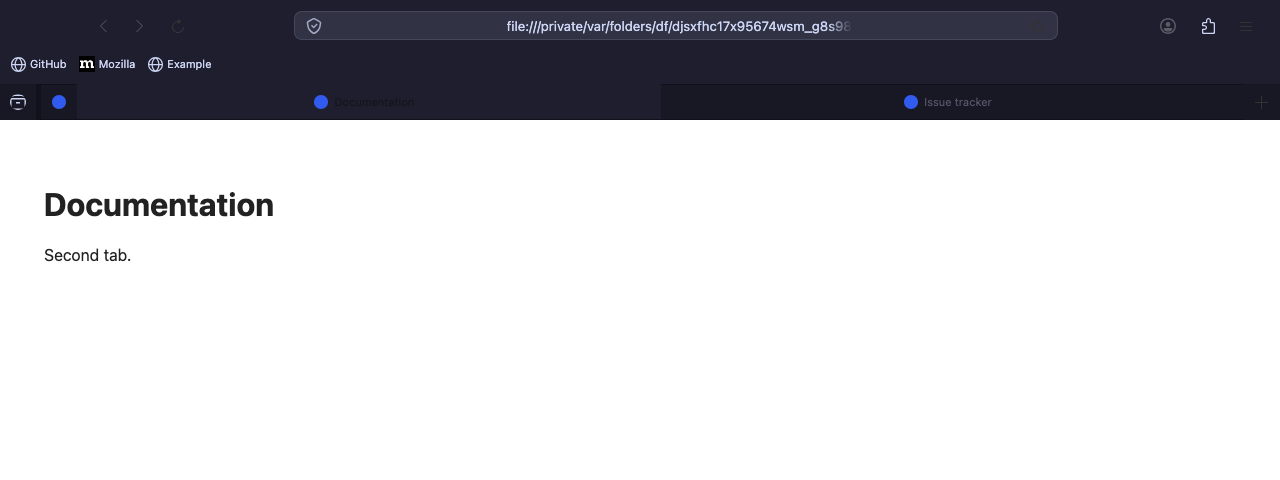
Dracula
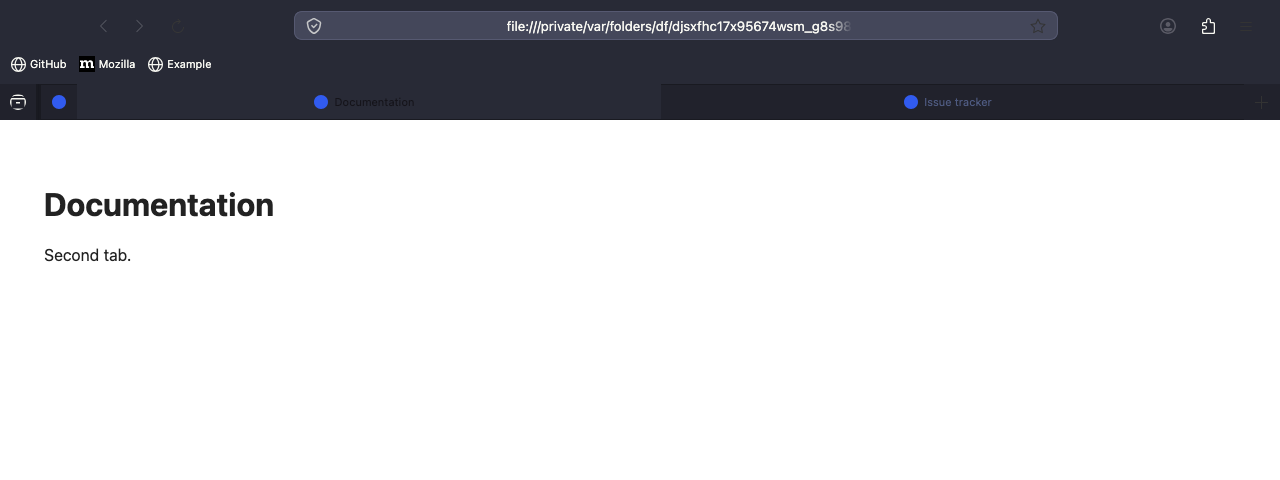
Everforest
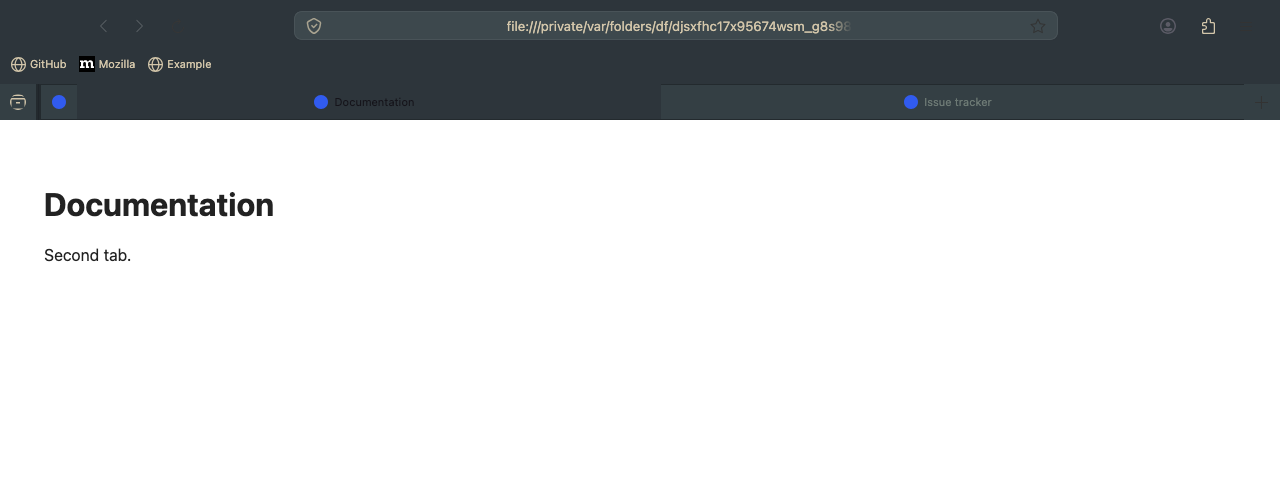
GitHub
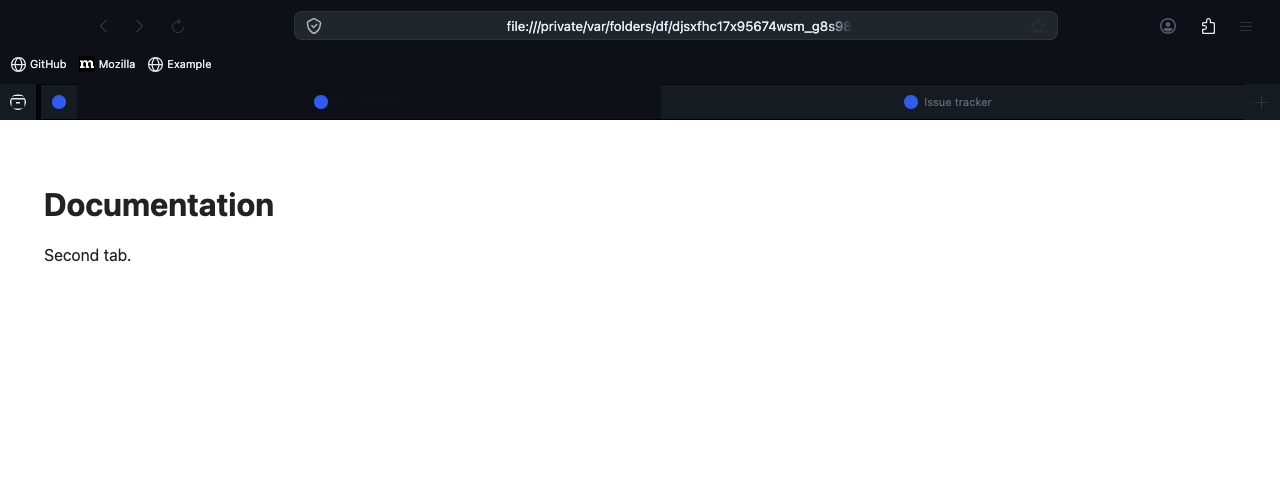
Gruvbox (2)
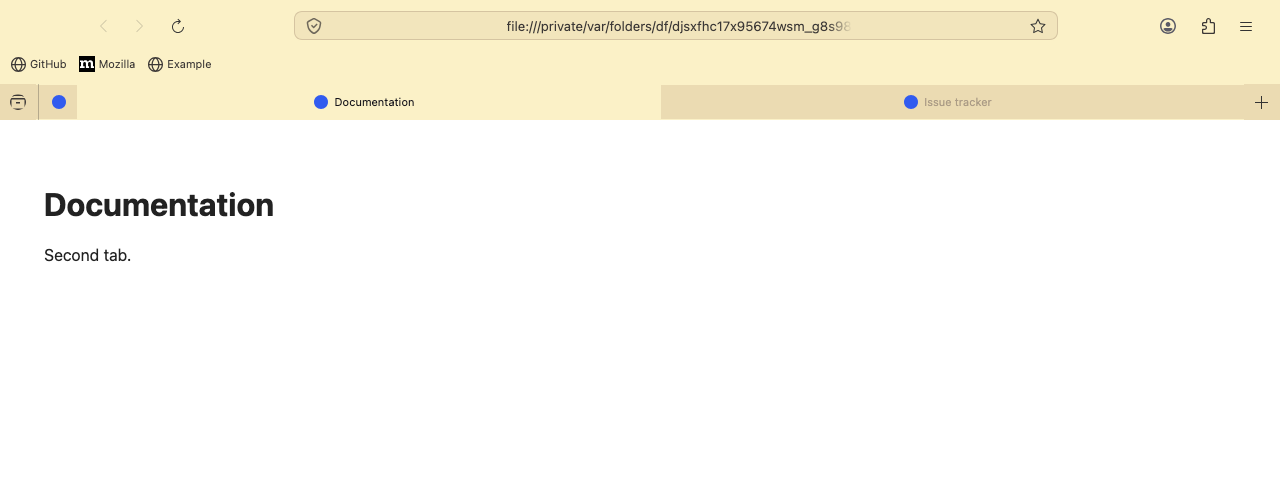
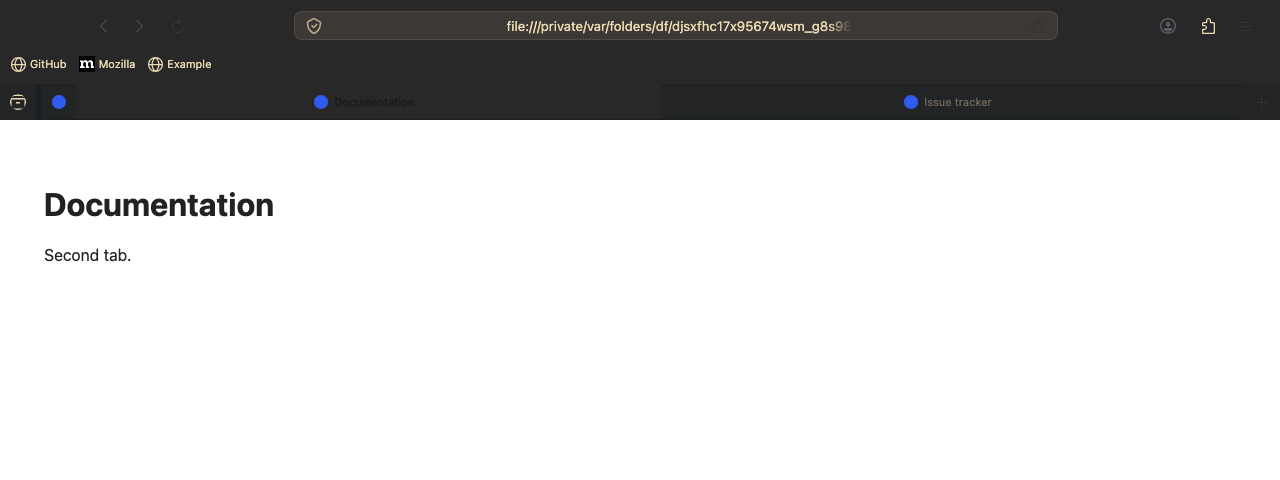
Material (2)
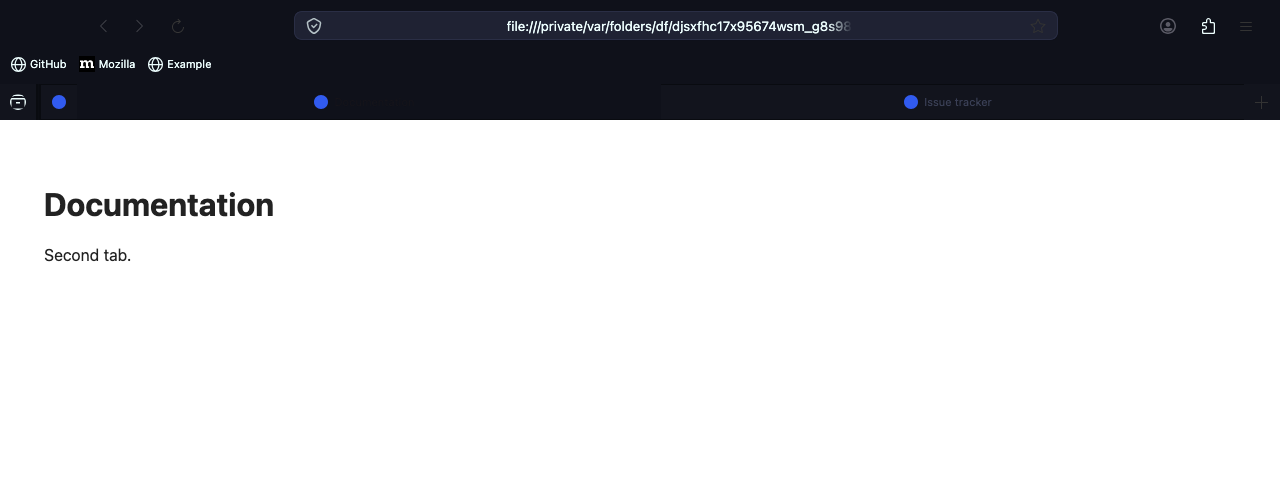
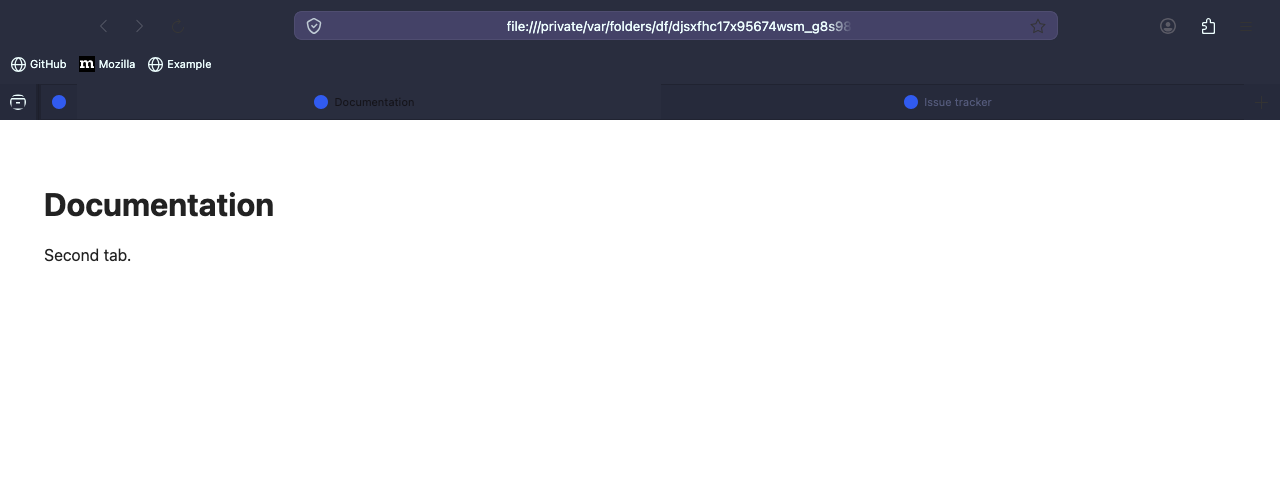
Monokai
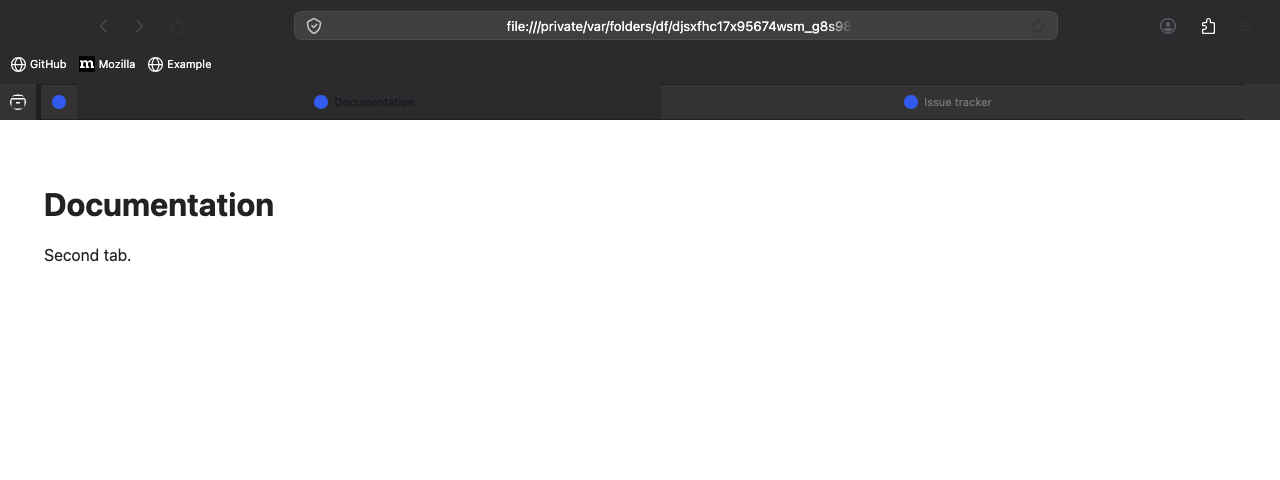
Night Owl
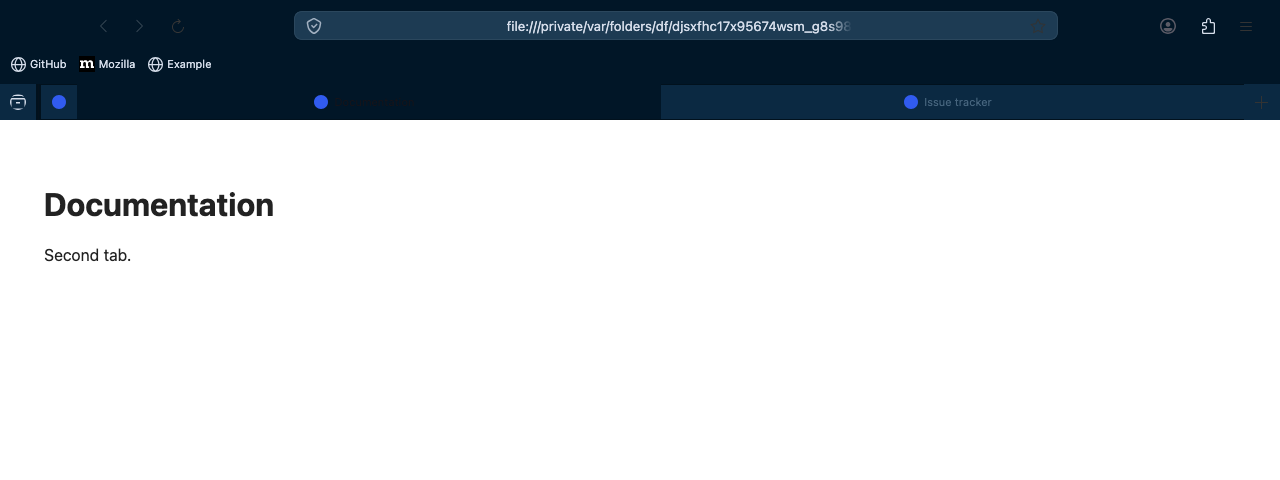
Nord
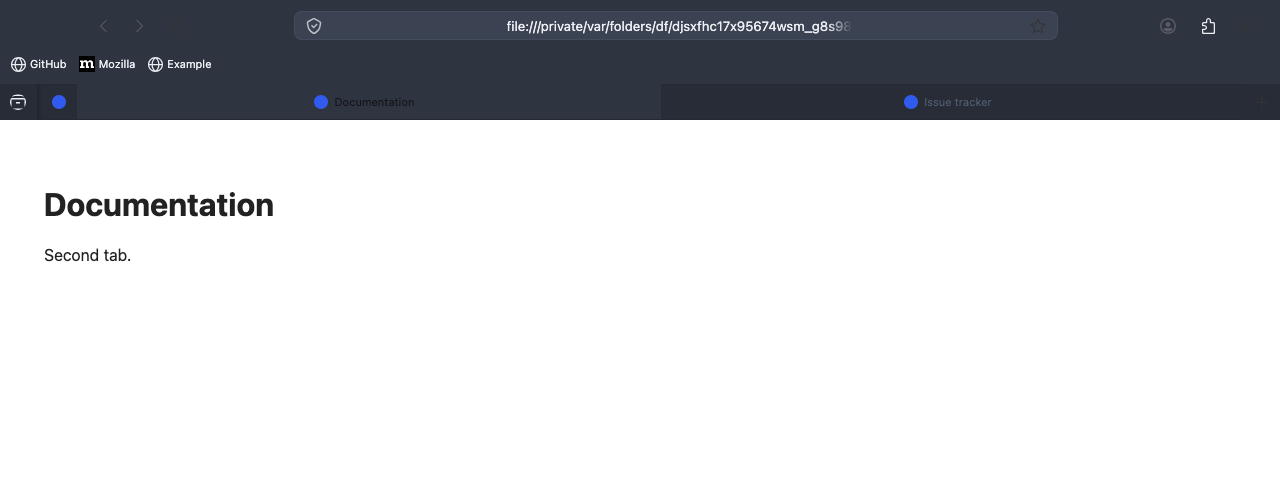
One Dark
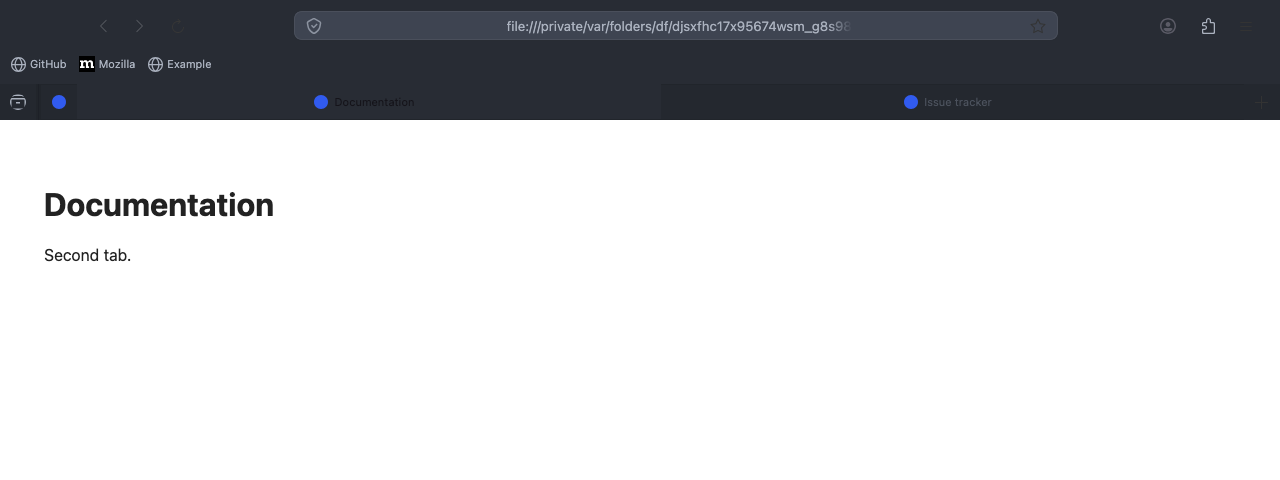
Rosé Pine
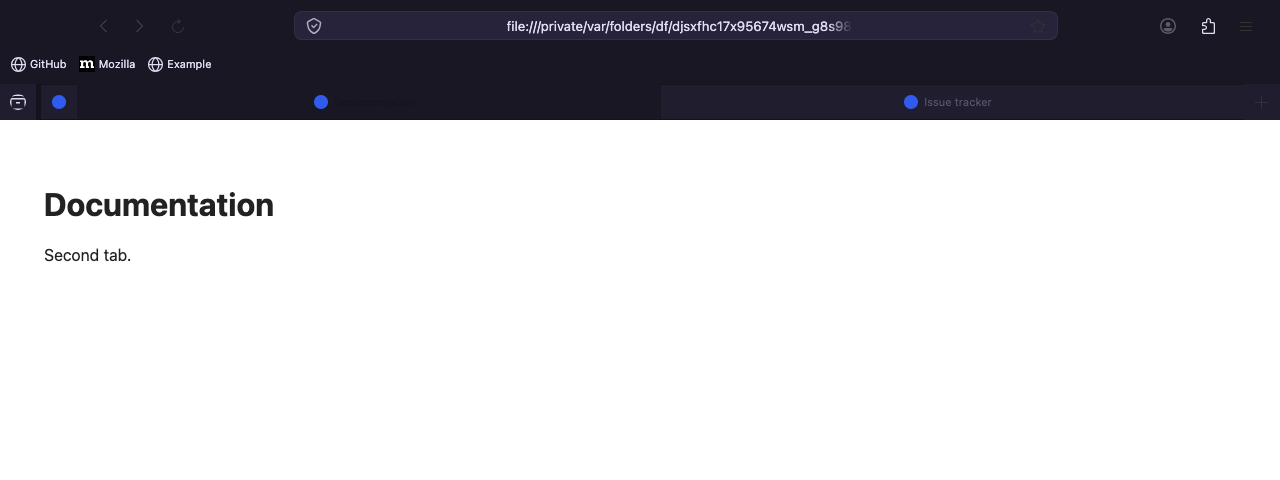
Solarized (2)
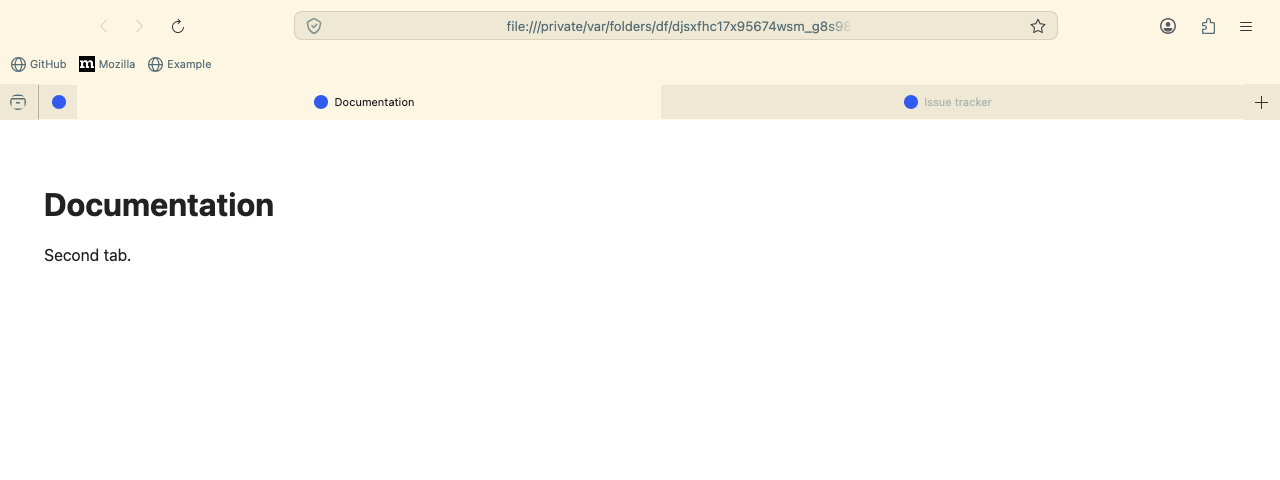
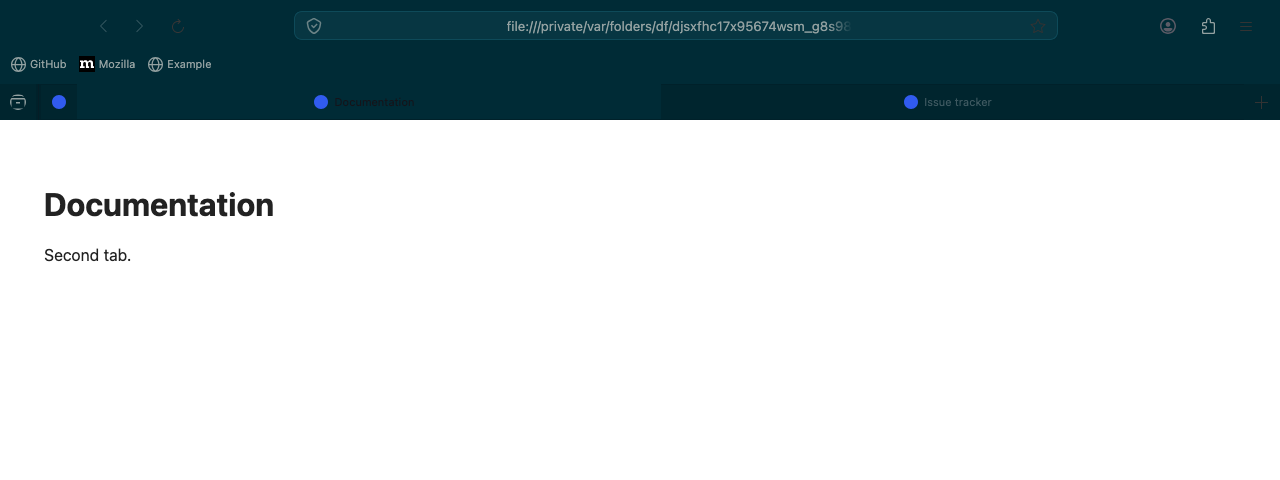
Tokyo Night
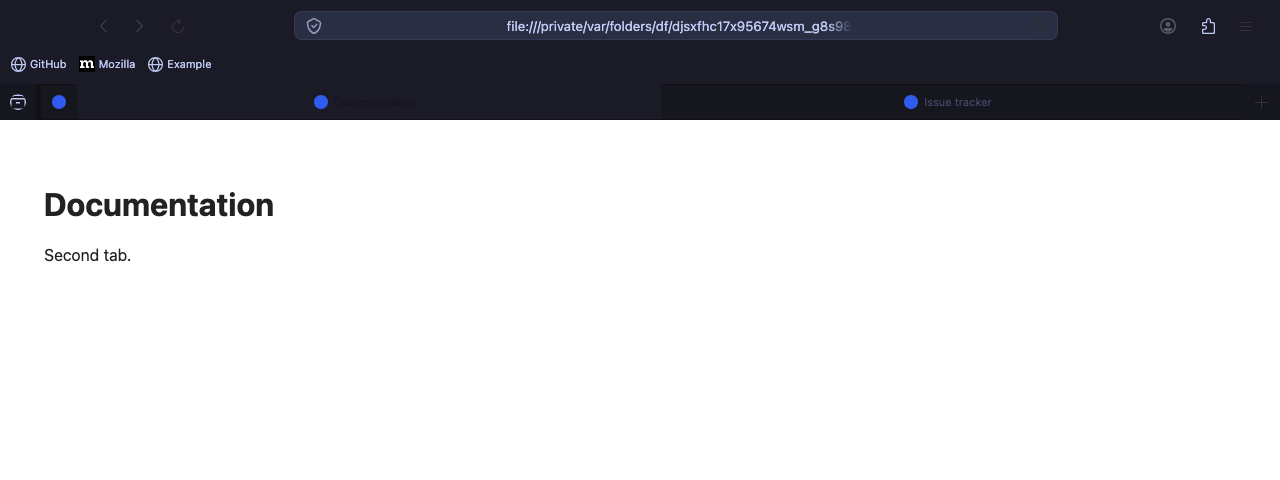
A colour theme applies its palette in both light and dark OS modes. The dark palettes pair best with Firefox's dark appearance (or ui.systemUsesDarkTheme — see Manual colour override below) so menus and about: pages match the chrome.
To preview one without touching your profile:
fxcss try AdamXweb/WhiteSurFirefoxThemeMacOS --with theme-dracula --darkManual install: copy custom/theme-<name>.css into chrome/WhiteSur/custom within your profile, like any other override. One colour theme at a time.
Firefox's vertical tabs (Settings → Browser layout, Firefox 133+) are styled. The strip uses the sidebar colours, rows have rounded highlights like Safari, and container tabs mark the edge of the row instead of the top. Colour themes apply there too. Turn vertical tabs on in Firefox and the theme follows.
Make sure to right click and Customize Toolbar. From here, drag the new tab button up to the toolbar out of the tab section.
Install with the following modifications for Safari-like experience
bash ./install.sh -c -n -s -e -p
This will give you a look like this:

Copy chrome and configuration folders into your Firefox Profile Directory
To find your Firefox Profile Directory you can:
- Go to
about:supportin Firefox. - Application Basics > Profile Directory > Open Directory.
- Copy folders mentioned above into the profile folder. (usually has
-releaseat the end). - If you are using Firefox 69+:
- Go to
about:configin Firefox. - Search for
toolkit.legacyUserProfileCustomizations.stylesheetsand set it totrue.
- Go to
- Restart Firefox.
- Done!
To manually add a custom override, copy the *.css from the custom folder of whichever option you are after. Place it in the chrome/WhiteSur/custom folder within the profile directory you opened above.
That's it, the theme should load your overriden settings
windows-swapclose.css contains the styles required to swap the close buttons, as well as to re-order the close button from MacOS styling to Windows.
Follow the directions above for the manual theme override to activate.
Can be installed with the -w command on the install script
tabs-swapclose.css contains styles to place the close button for the tab on the left hand side for consistency with Safari. Can be installed with the -c command on the install script
The theme obeys your system UI colour preferences. If you want to override it e.g. always have the dark theme, then you'll have to do the following.
The solution if you don't want to change your System UI colour is to do add the following to your about:config
Add: ui.systemUsesDarkTheme with the number value with 1 for dark, and 0 for light.

Please note, you won't be able to change the System UI colour if you are using privacy.resistFingerprinting. This apparently is for both web pages and the System UI.
If it is a fresh install of Firefox, the script for MacOS should enable the settings automatically, however users who have toggled settings may need to do the about:config in step 4 above.
If for any reason the WhiteSur theme doesn't activate after using the script, follow steps 4.1 and 4.2 to toggle the stylesheets from within the Firefox settings.
The tab background colour can be overwritten by themes installed through firefox extensions. e.g. if you are using a dark theme in light mode, tab backgrounds that are inactive are affected. Fix: Change the installed theme to appropriate colour scheme to avoid issues.
If you're looking to change the directory to run the script, you can always type bash then drag the file into terminal. You can also type cd and then drag the folder and press enter to navigate to the directory.
Alternatively, if you're running Catalina, the default terminal is zsh, meaning you can change folders by typing the name to enter the folder e.g. WhiteSurFirefoxThemeMacOS
Q: "Why bother doing this, and not just use safari?"
A: I've used safari for quite a few years, and was rather disappointed with the change in extensions, particularly with content blocking. This prompted me to use uBlock origin on Firefox, and to customise it to have the best aesthetics, and simplest transition.
If you've found a new bug, please report it as a new issue with the templates provided.
Thanks!
Every pull request that touches chrome/, custom/ or configuration/ gets a
comment showing the browser chrome before and after your change, with
the changed pixels highlighted — on macOS and Windows, in light and dark. If a
change turns out to alter nothing on current Firefox, the comment says that too,
which is worth knowing before anyone spends time reviewing it.
To get the same feedback while you work, without restarting Firefox after every edit:
pipx install "fxcss[images]"   # no pipx? brew install pipx — plain pip hits PEP 668 on Homebrew/Debian Python
fxcss watch          # edit CSS and see it live, in a throwaway profile
fxcss pick           # click any part of the UI to get its CSS selector
fxcss watch never touches your real Firefox profile. fxcss pick also tells
you which files in this repo already style the element you clicked, which is
usually the fastest way to find where a rule belongs. See
AdamXweb/fxcss for the rest.
Two things that catch people out when theming Firefox:
- On macOS, right-click menus are drawn by the OS, so the
menupopuprules inparts/popups.csshave no effect there. They do apply on Windows and Linux.fxcss watch --native-menus=falseswitches Firefox to themeable menus if you need to work on them from a Mac. - Selectors change between Firefox releases.
fxcss inspect '#some-id'will tell you when a rule targets something that no longer exists.
